Incoming Grant Management (SmartySeeker) TRIAL
What is it?
The SmartyGrants team have received several requests from our grantmakers about being able to manage grants that they seek. SmartyGrants is designed for you as a grantmaker to manage your grant rounds in, however, as we have received so many requests, we have developed some forms and a way that you can trial managing grants you seek yourself.
SmartySeeker
The way the forms have been developed suggest that ONE central person (i.e. grant seeking co-ordinator) manages these through SmartyGrants. Grants officers will still need to enter relevant information on grants they INTEND to apply for (this is OPTIONAL dependent on whether an APPROVAL process is part of your current process) and those that they have SUCCESSFULLY WON.
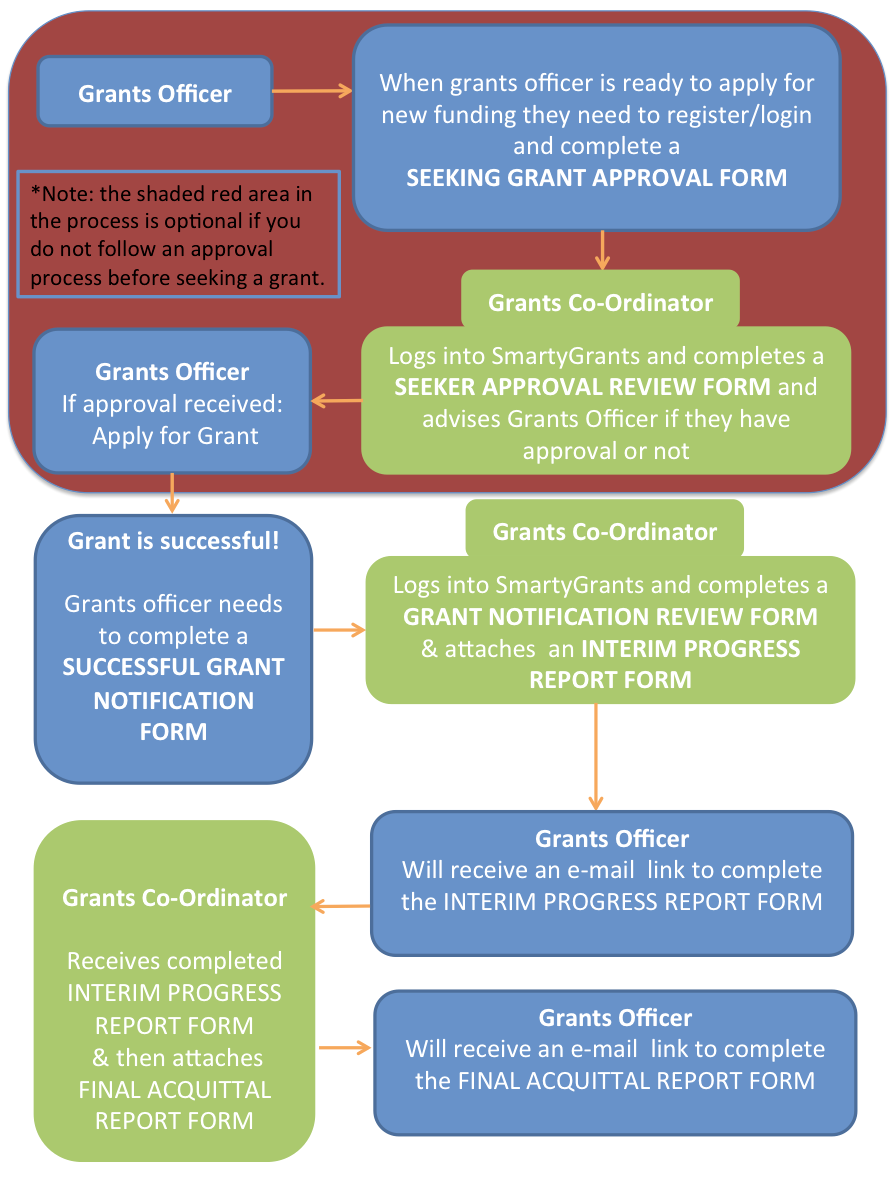
An example of how this may work is outlined here:
How can you get started?
If you are interested in trialling the grant seeker management forms, please contact our service team by e-mail service@smartygrants.com.au or by phone (03) 9320 6888.
Our service team will ensure that the program and forms are loaded into your existing account and then you are all good to go!
STEP 1: PROGRAM
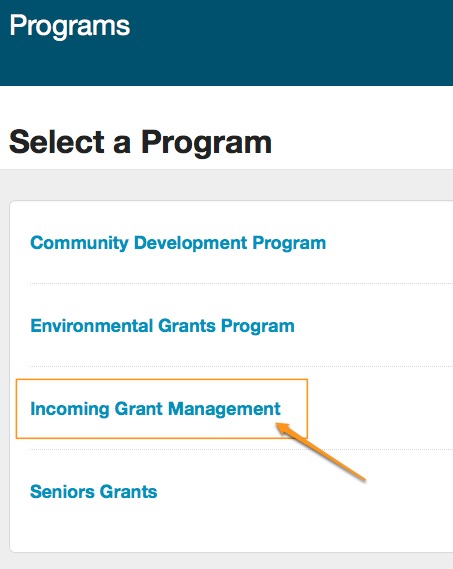
The SmartyGrants team will set-up a program in your SmartyGrants Account called 'Incoming Grant Management'
- Click on the 'Incoming Grant Management' program
STEP 2: ONLINE FORMS
- Click on the 'Forms' tab: The forms screen will give you a listing of existing online form templates that the SmartyGrants team have already created for you. From here, you also have the ability to edit these forms, the settings for each form or create new forms.
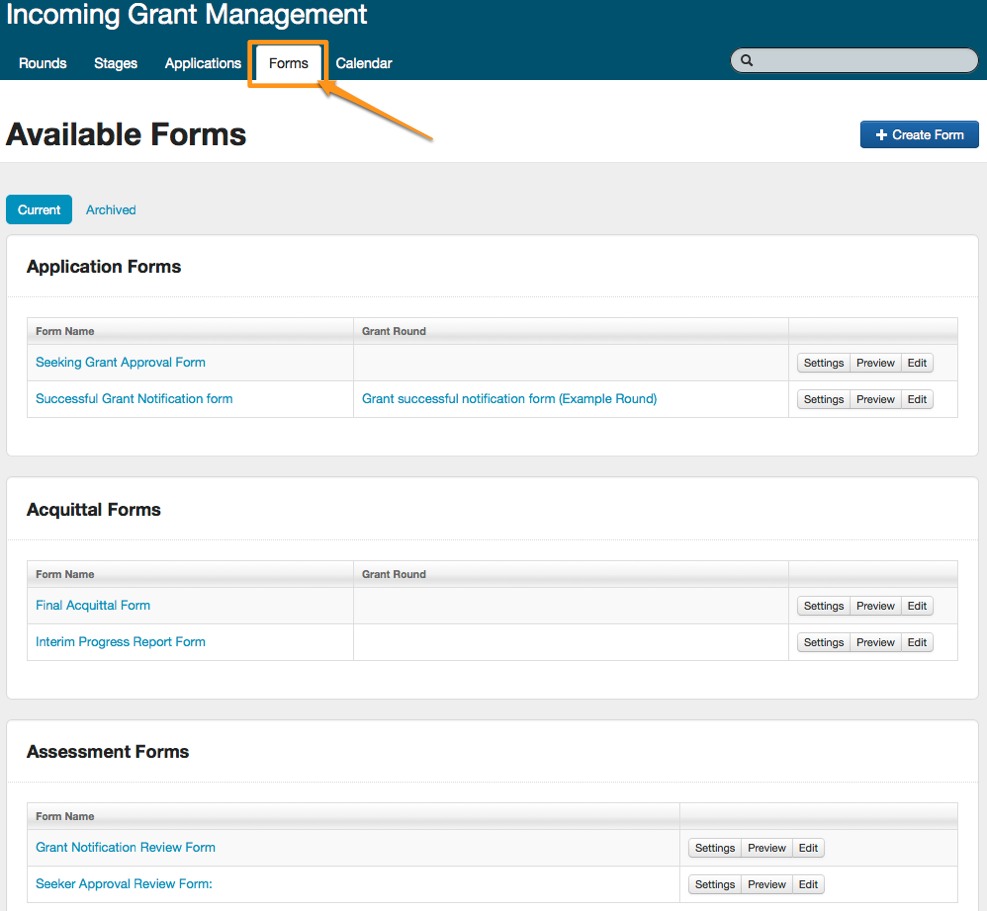
You should become familiar with the six templates available:
SEEKING GRANT APPROVAL FORM (Application): This is the form your grants officers need to complete before they actually apply for the grant. This is an approval form that you will review and either sign off for approval or reject.
SEEKER APPROVAL REVIEW FORM (Assessment): This is the approval form that you (Grants Co-ordinator) will complete within SmartyGrants. If you do approve the grant application to go ahead you will need to attach the following (Successful grant Notification) form. For details on how to attach new forms to submissions click here
SUCCESSFUL GRANT NOTIFICATION FORM (Application): This form is to be completed by the 'Grants Officer' when they hve been advised that their sort after grant has been successful and they will be receiving new funding.
GRANT NOTIFICATION REVIEW FORM (Assessment): This form is to completed by the Grants Co-ordinator once they have received the completed 'Successful Grant Notification' form. Once this review form has been completed, the Grants Co-ordinator needs to attach the following 'Interim Progress Report Form'. For details on how to attach new forms to submissions click here
INTERIM PROGRESS REPORT FORM (Acquittal): This form is to be completed by the Grants Officer. Once this completed form is received by the Grants Co-ordinator, the following 'Final Acquittal Form' needs to be attached to the submission. For details on how to attach new forms to submissions click here
FINAL ACQUITTAL FORM (Acquittal): This 'Final Acquittal Form' is to be completed by the Grants Officer when they submit their Final Acquittal to the funding organisation.
2. To preview the content of the forms click on 'Preview' or click on 'Settings' and the forms are downloadable in PDF from here.
3.
STEP 3: ATTACH FORM TO GRANT ROUND & GO LIVE
In order to make your forms available to your Grants Officers and get rolling, you need to set-up a Grant Round.
STEP 4: REPORTING
Reports allow you to turn your grants data into meaningful and practical information, formatted however you wish. The purpose of trialling the SmartySeeker incoming grants you seek is to have better control over your unsuccessful and successful funding, including whether all requirements are met and being able to keep all acquittals in one area.
Any field that is included in any of the form templates &/or any fields you add/edit in the form templates or record throughout the system can be reported on.
For more information on reporting please see Reports and Correspondence.