UK Implementation Training Pathway
SmartyGrants is a powerful online service that enables grantmakers to receive online applications and manage every stage of the grant lifecycle.
The Implementation Training Pathway will help you transition to using SmartyGrants. It will teach you the fundamentals of the system, and equip you with the skills needed to administer your funding programmes online.
Note: The below information only applies to managers who have been granted Administrator access to SmartyGrants as part of implementation.
If this does not apply to you, skip ahead to Priority learning.
Table of contents
Before implementation
To make implementation a breeze, you’ll want to reflect on your existing grants process first.
Putting the SmartyGrants system aside for a moment, you are likely transitioning from other systems and other ways of managing grants. Perhaps you are used to managing grants using a combination of separate software/hardware not purpose-built for grants, or perhaps you’re moving from a fully paper process to an online one. Change is always difficult, no matter how simple your processes or needs are!
You'll want to have a high level understand of your existing process and your goals when transitioning to SmartyGrants, including:
the main milestones of your grants processes,
your current pain points,
where you'd like your processes to be, especially if your current process is full of cumbersome workarounds or tedious administrative tasks that can be eliminated by SmartyGrants.
To make this reflection easier, you can review our Grantmaking Toolkit. All of these concepts outlined in the toolkit can be translated into SmartyGrants with ease.
If you’re going live with a funding round ASAP, your Implementation Manager may ask you to just focus on the accepting applications part of your process for now. Other parts of your process can be addressed later.
User access to training
Before commencing training, your team must be added into the system. A user account is required for each team member to be able to access all training resources (including the Help Hub and SmartySkills).
Set up users
Select the Settings icon at the top of screen.

Under Users, select User Access.
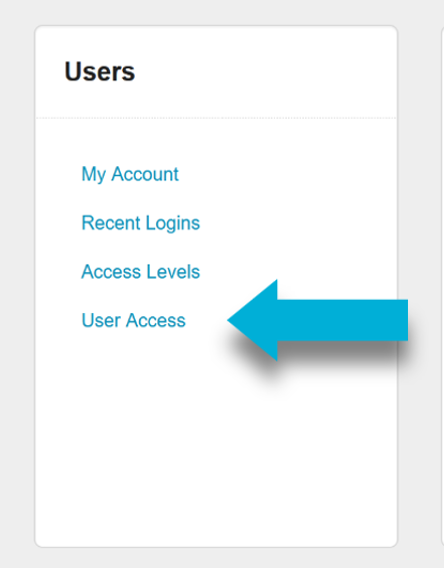
In the User Access screen, select the blue Add User button.

Enter in the user's name, email address, and organisation.
Select Add User.
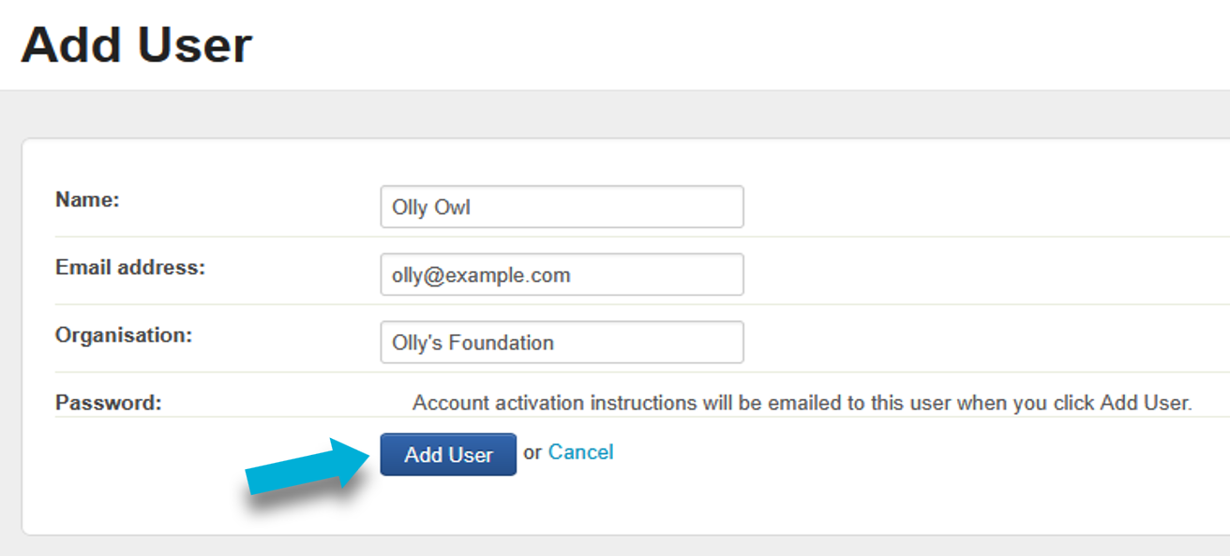
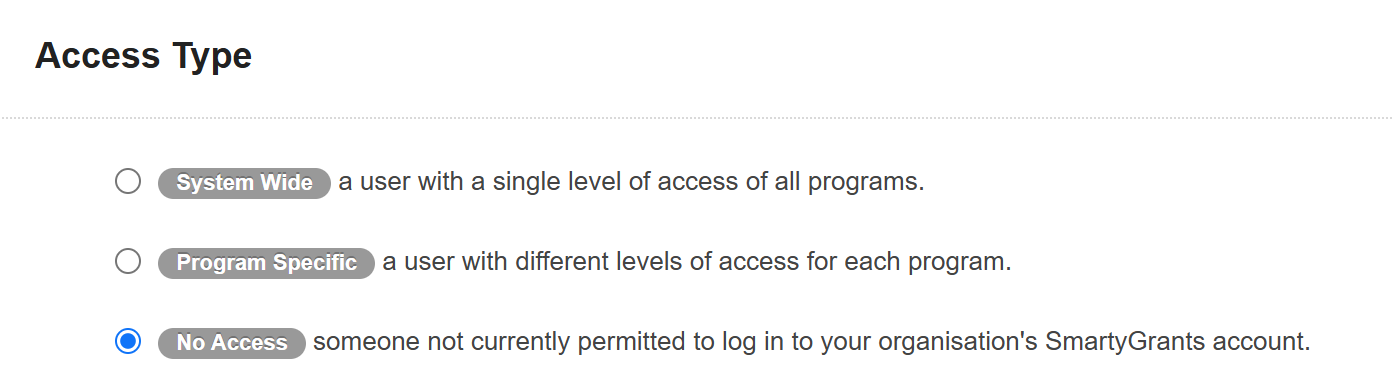
Next, you’ll need to assign a user access level for that user. Scroll down to Access Type.
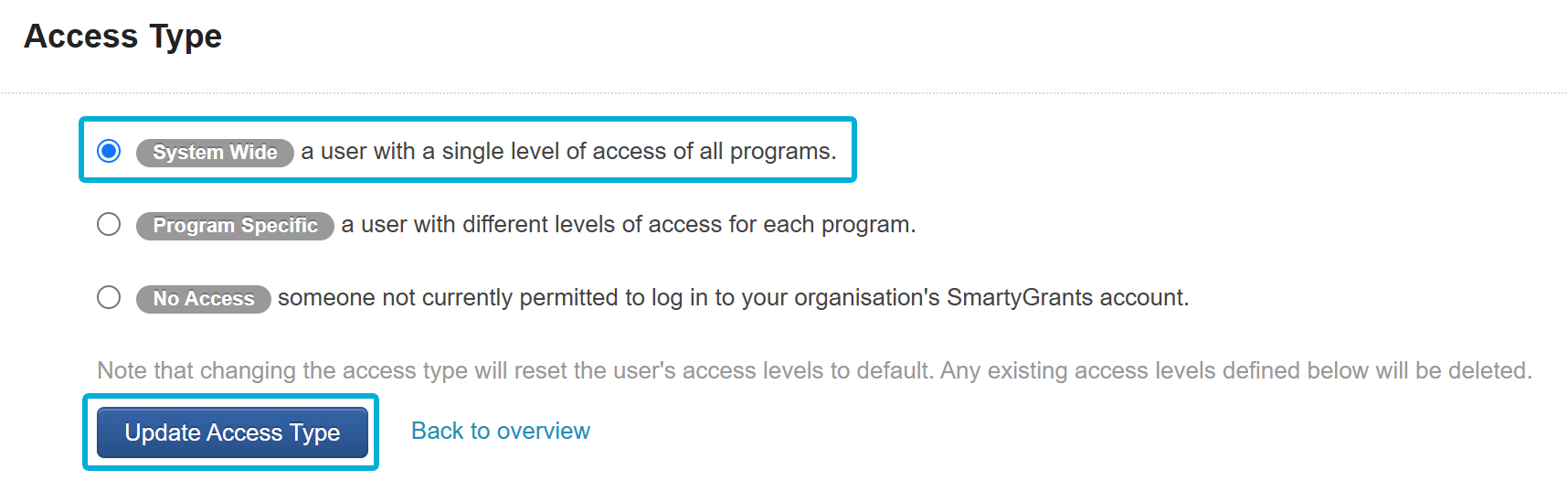
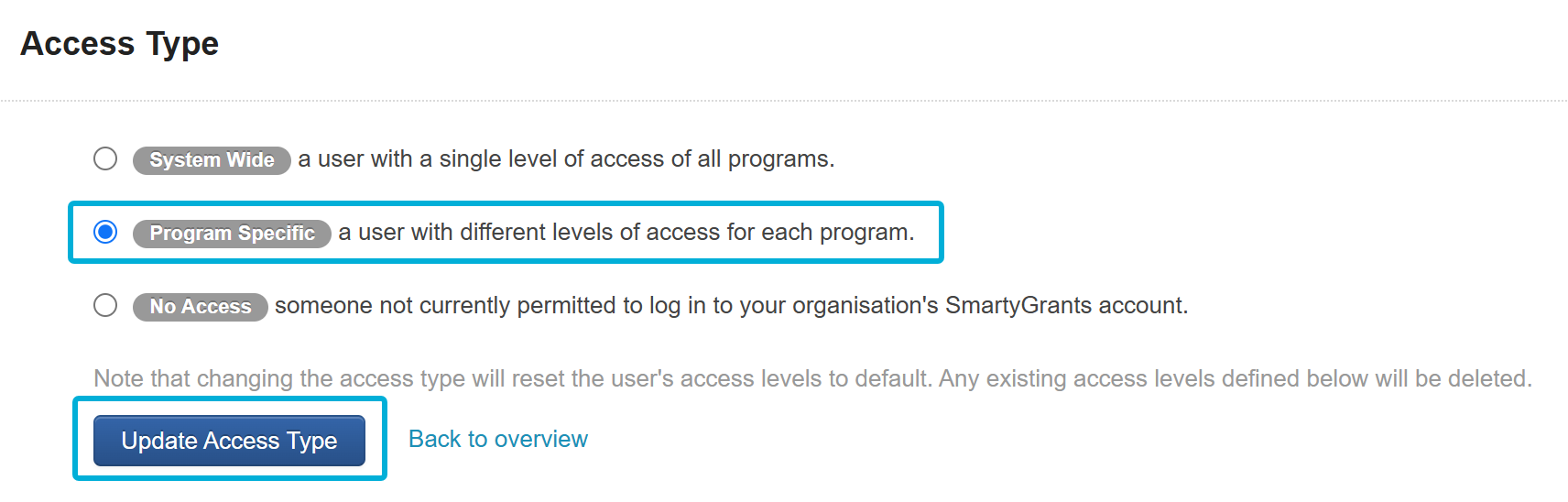
Select the access type you wish to assign your user, and then select Update Access Type.
System-Wide: A single, consistent access to all programs.
Program-Specific: Different level of access for each program.
No Access: No visibility and access to your organisation’s account.
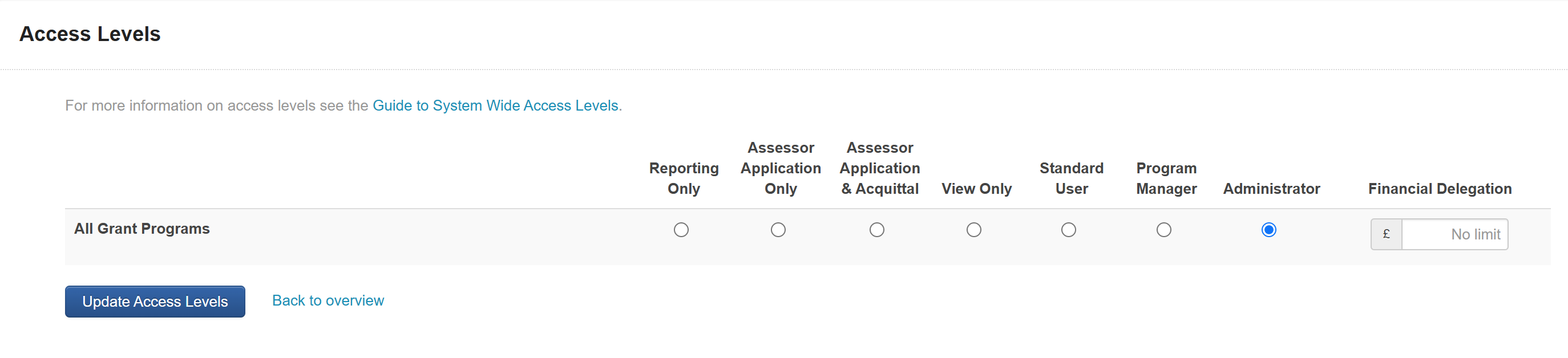
Depending on what access type you choose, another window will appear to confirm the User Type. The options presented differ for each access type.
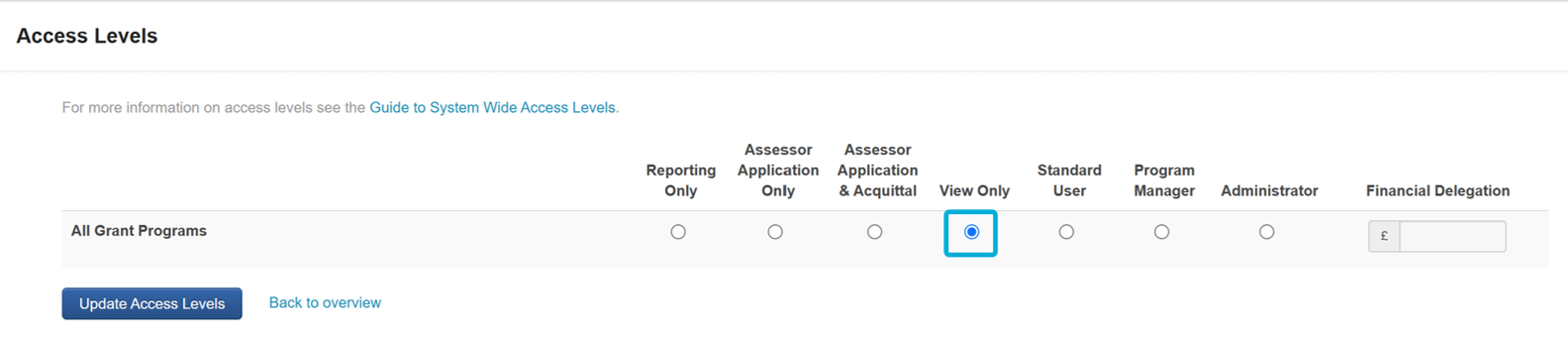
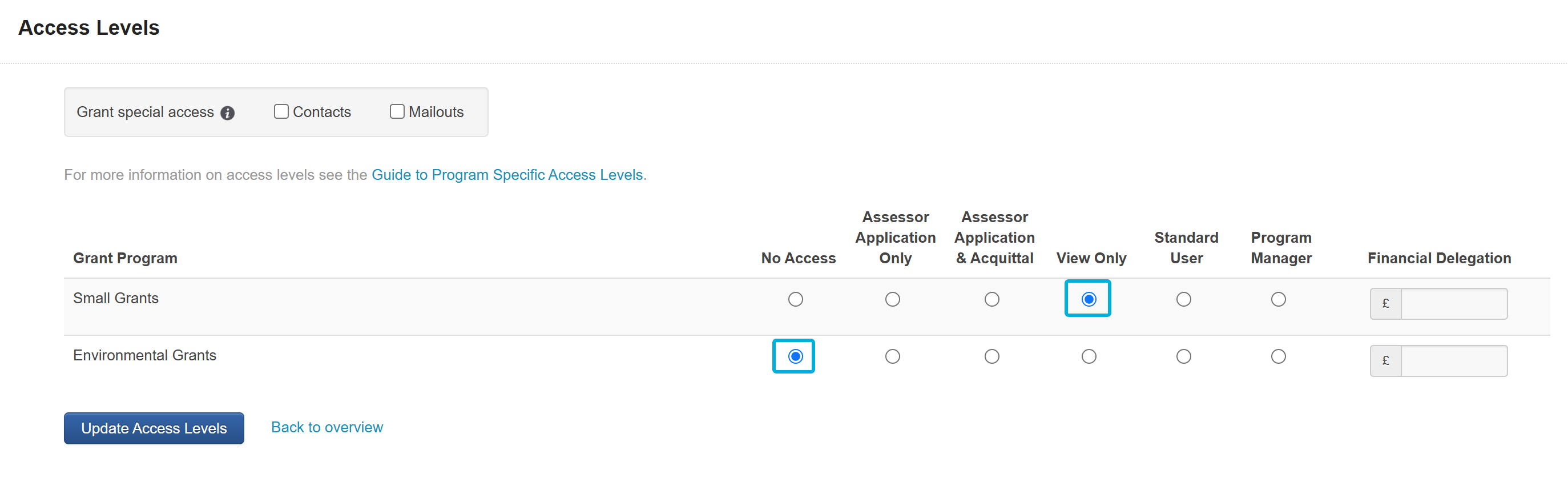
Select the relevant choices for your user, and then select Update Access Levels.
Note: Once you add a user, an automatic email will be sent from service@smartygrants.co.uk to that user’s email address. The email will contain a link for them to create their password.
If the user is having trouble finding that email, double-check that their email address was input correctly. You can also ask them to check their junk/spam inbox folder.
If they still cannot locate the email, contact our support team for assistance.
About user permissions
When assigning access to users, consider the minimum access and permissions needed for a user to perform their role.
For example:
A grants officer that may be performing eligibility checks or assessments, and/or reaching out to individual applicants about details of their applications, would need Program Specific access type, Standard User user type.
A manager who is publishing and maintaining a specific funding programme would need Program Specific access type, Program Manager user type.
An external assessor that is only performing assessments for a specific funding programme (and doing nothing else) would need Program Specific access type, Assessor (Application Only) user type.
A data analyst that only needs to run reports across all programmes would need System Wide access type, Reporting Only user type.
This is not an exhaustive list, and the examples are only for your consideration. You may have different access needs depending on the structure of your organisation or the delegation of tasks and responsibilities. We recommend reviewing our User Access page for more details. You can also contact our support team if you have any further queries on user permissions.
What if I don’t know what permissions my team need yet?
If you have not yet decided on what permissions your team will need, you can create users with the following settings below. These settings provide “view only” access, which is the minimum access needed to access to our training resources. User permissions can be updated later at any time.
Option 1 (no program created yet)
Access Type: System Wide
Access Level: View Only
Option 2 (some programs already exist)
Access Type: Program Specific
Access Level: View Only to some programmes, No Access to other programmes
Modules
The Implementation Training Pathway consists of four modules:
Priority learning
Time estimate: ≈ 1 hour 40 minutes
Testing
Time estimate: ≈ 45 minutes
Go-live
Time estimate: ≈ 1 hour 55 minutes
Assess and decide
Time estimate: ≈ 1 hour 50 minutes
It is recommended that you complete the modules according to these key milestones:
Priority learning – as soon as possible
Testing – when your Implementation Manager asks you to test forms
Go-live – when you publish your first funding round
Assess and decide – when you need to perform application reviews/assessments
However, you can complete all four modules at once.
Where to next?
Now that you and your team are ready to learn SmartyGrants, head to Priority learning.