Assess and decide
This module walks through the features of SmartyGrants that you’ll use in grants administration once you're ready to perform assessments and start awarding funding.
Table of contents
Duplicate contact management
As you continue to accept new applications into rounds, your list of contacts will grow. Over time, you may see duplicate contact records appear in your directory.
Duplicate records happen because a contact record is created each time an application form with contact fields is submitted. The system does not automatically merge new contact records with existing contact records.
However, the system does have logic to identify when a contact may be a duplicate of another contact. This logic is used to flag duplicates for you to review. You decide if you'd like to merge these duplicates or keep them separate.

It's important to stay on top of managing duplicates. Merging duplicate records allows you to a have consistent, up-to-date contact record for each organisation or individual. It also ensures that a contact’s Grant Involvement History is comprehensive across all your programs and rounds.
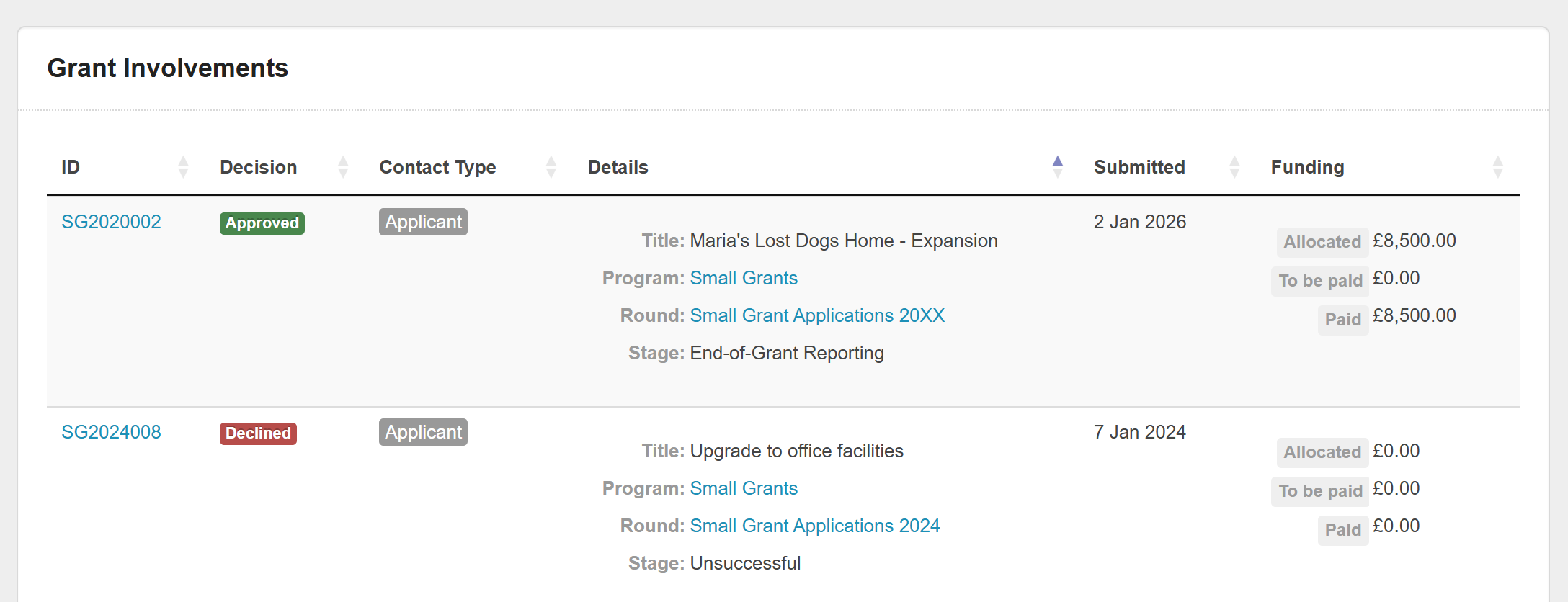
To learn how to manage duplicates, please complete the LMS course below:
Managing duplicate contacts (≈ 10 minutes)

Once you have finished this course, return to this page and continue from Assessments below.
Assessments
SmartyGrants makes applications easy to review, and offers powerful functionality to streamline the work of internal and external assessors - both of which are essential to performing assessments.
User access
Assessments can be performed by any user with an access level of Standard User or above. These users can fill out an assessment form against an application.
However, you can also configure Assessor Only users. These users can only fill out assessment forms for specific applications they’ve been assigned to through a task. Outside of their assigned tasks, they cannot see or access any other part of your account.
Tip: Assessor Only users are a good fit for:
People outside of your organisation who will perform assessments (e.g., partners, subject matter experts, external panellists).
Staff who will perform assessments but are not otherwise involved in grant administration (e.g., trustees, directors, staff from other departments).
System view | Standard User example view | Assessor Only example view |
Programs view | 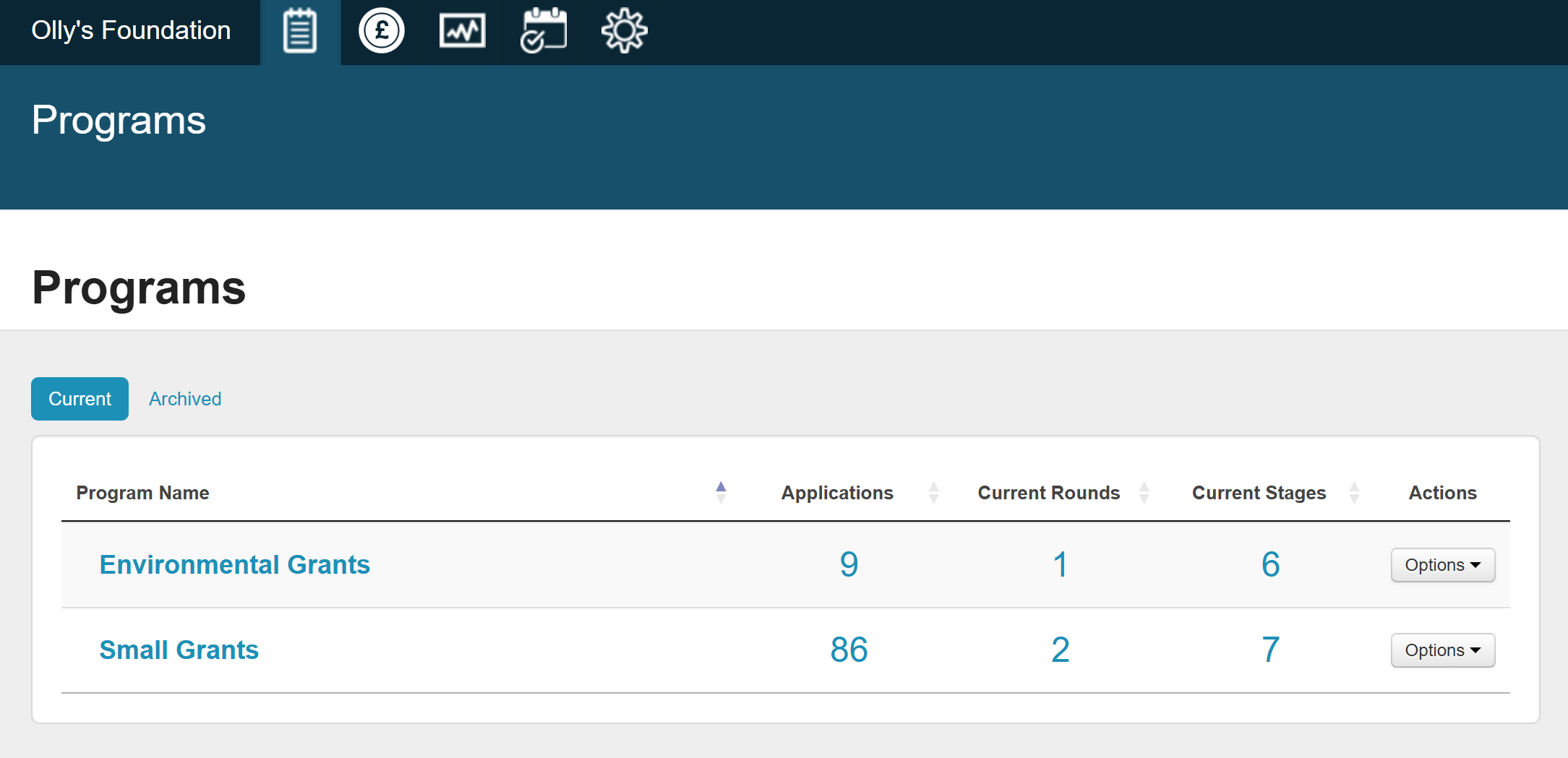 | 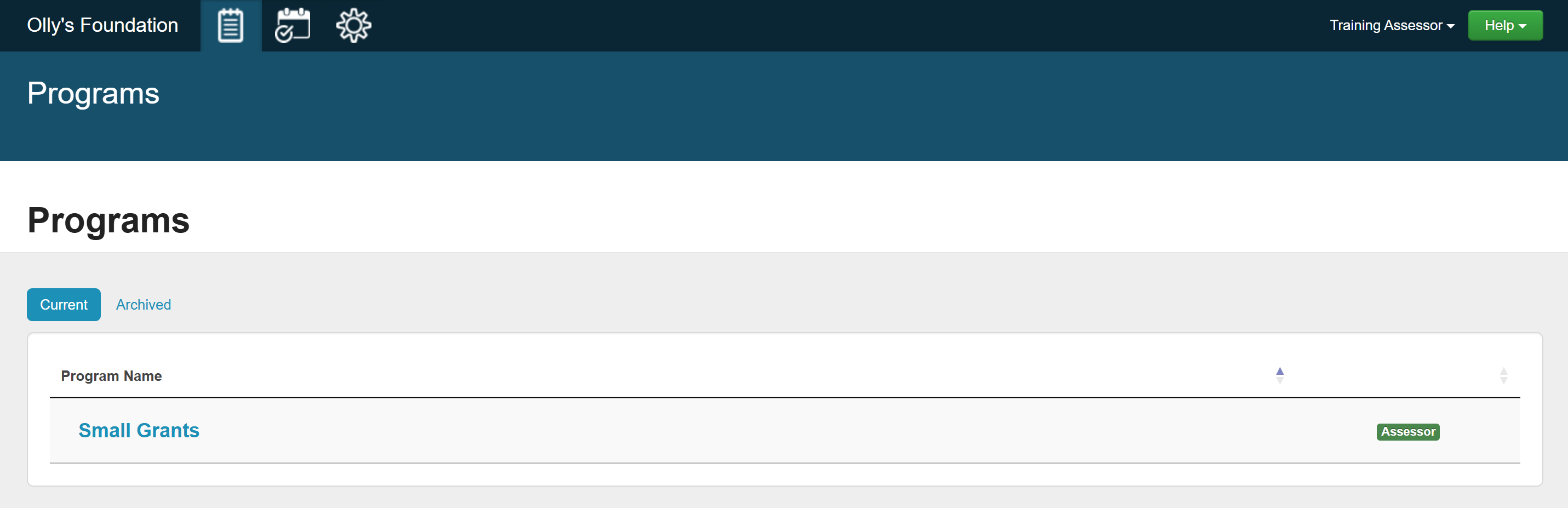 |
Tasks view | 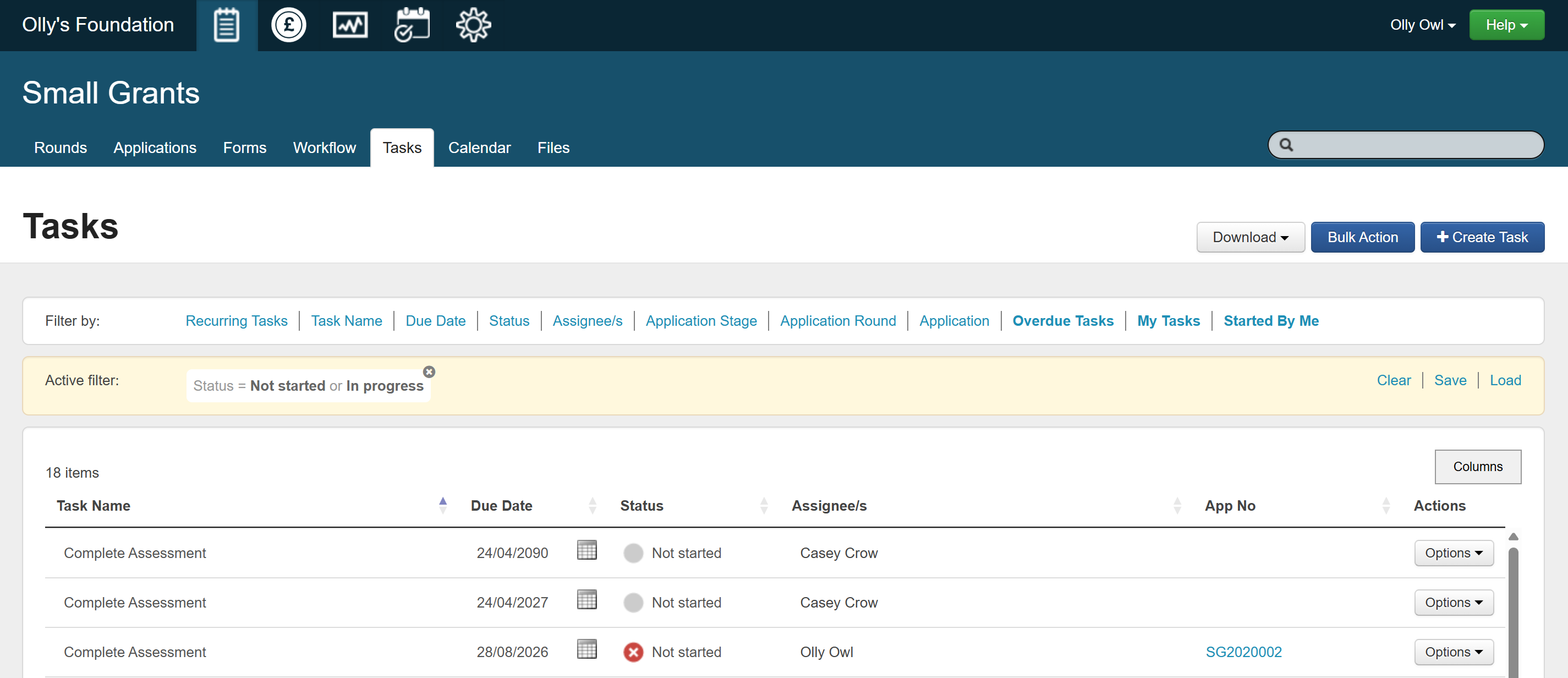 | 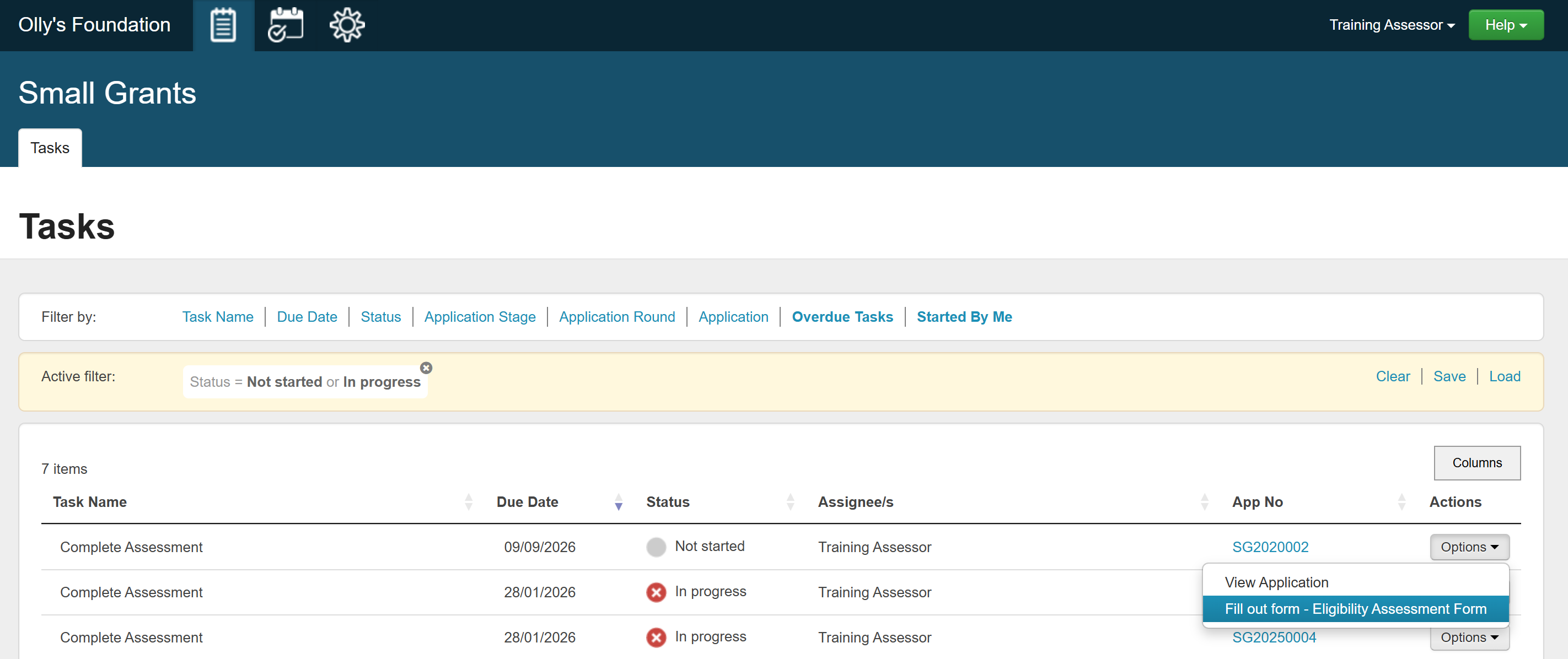 |
Application record | 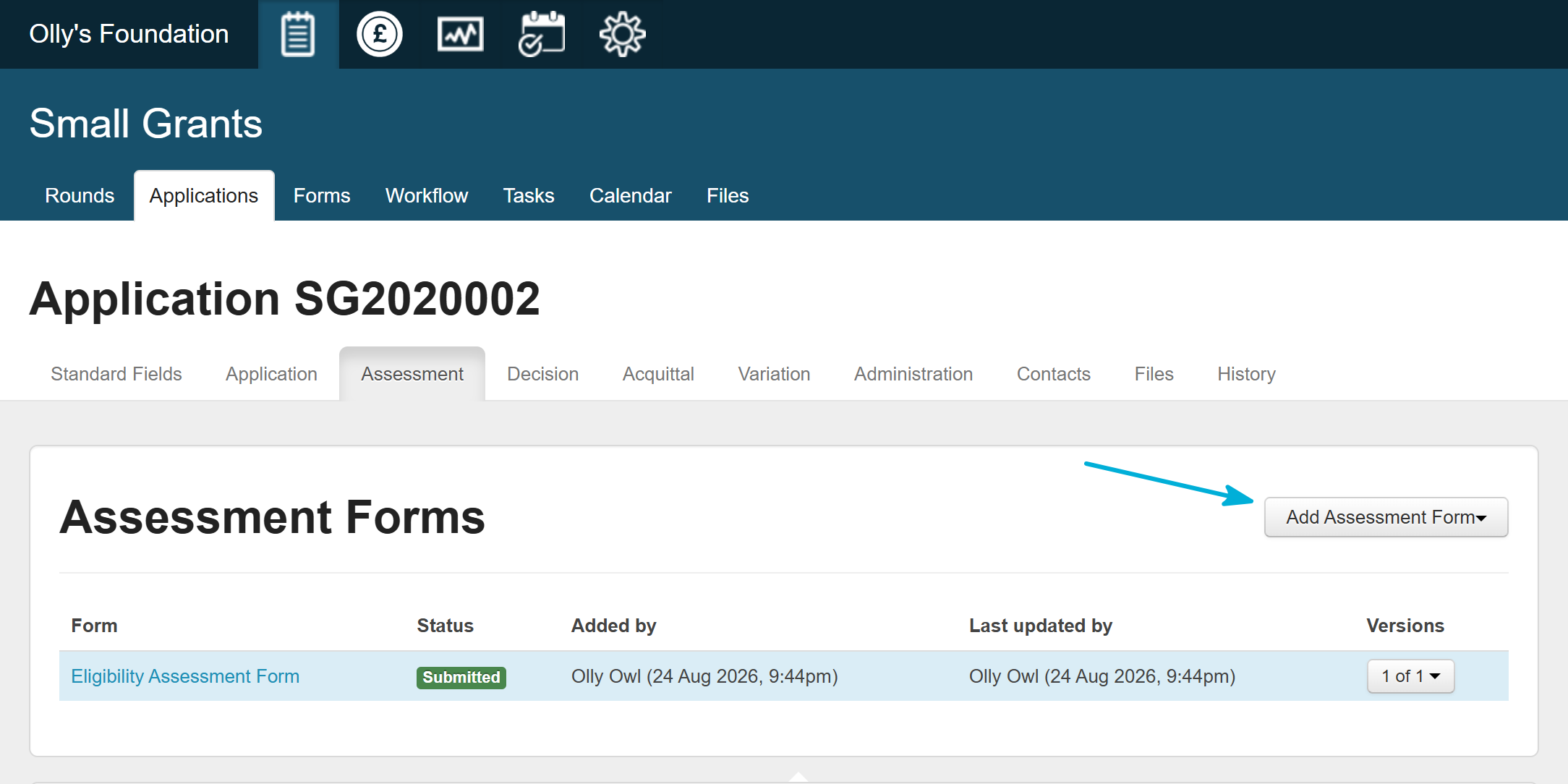 | 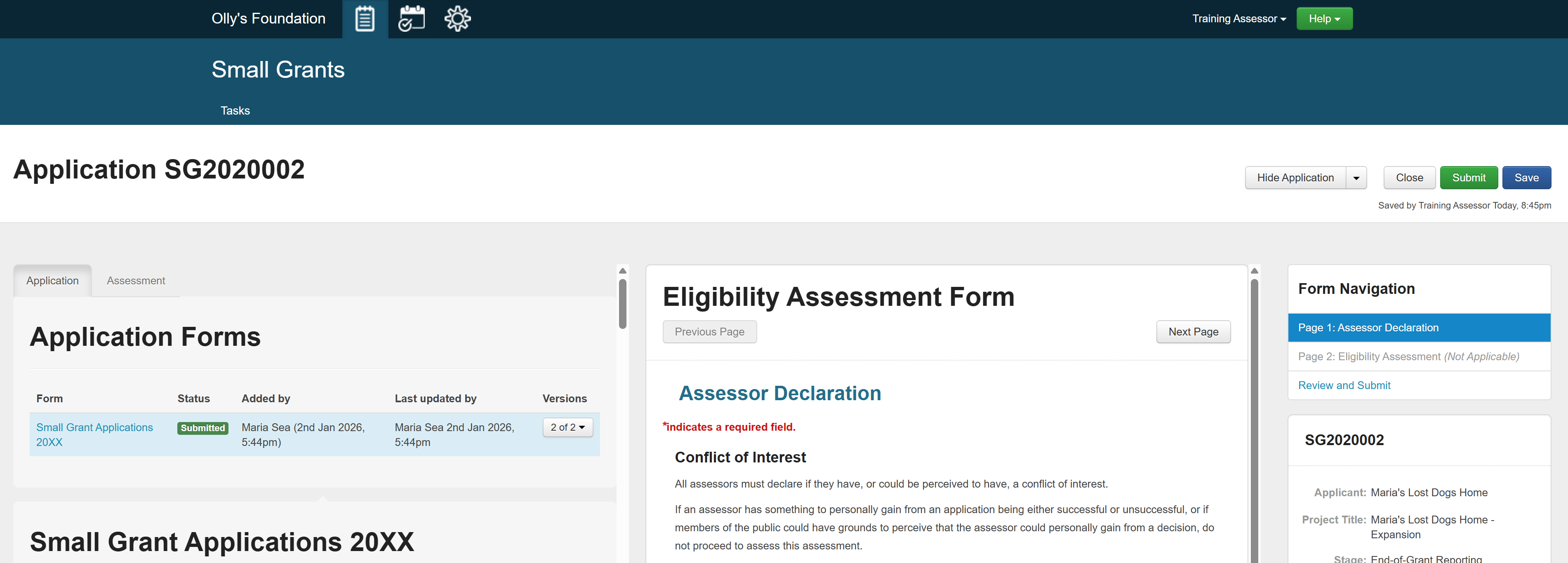 |
To learn how to design and manage an assessment process on SmartyGrants, please complete the LMS course below:
Assessments (≈ 25 minutes)
Once you have finished this course, return to this page and continue from Mailouts below.
Mailouts
In addition to sending individual emails to contacts, SmartyGrants allows you to send out a mailout to multiple contacts within one program or several at once.
To learn how to manage mailouts on SmartyGrants, please complete the LMS course below:
Creating and managing mailouts (≈ 20 minutes)
Once you have finished this course, return to this page and continue from Reports below.
Reports
As a refresher, reports allow you to transform your grants data into meaningful and practical information, formatted however you wish. All data recorded in the system can be extracted via a report.
With reports, you’ll need to know how to:
Run a report that was created for you during implementation, and
Generate a snapshot report.
Later, you’ll also need to learn how to maintain and create custom reports. However, working with custom reports can be a more involved process, so we recommend tackling this topic after finishing your implementation training pathway.
To learn the basics of reports on SmartyGrants, please complete the LMS course below:
Reports overview (≈ 30 minutes)
Once you have finished this course, return to this page and continue from Budgets, decisions and funding below.
Budgets, decisions and funding
Deciding who is funded, and awarding that funding, are key to any grants process. Managing this on SmartyGrants is done at both the account level and in individual applications.
In Settings, you can set up your funding parameters – financial periods, budgets, funding sources and allocations – which control how payments are recorded.
Within an application record, you can log a Decision (the ‘outcome’) of the application. Payments can also be recorded for any Approved applications.
Important: SmartyGrants is not a payment processor. Instead, the system allows you to record payments to ensure you have a complete funding history for an application in one place.
To learn the basics of budgets, decisions and funding in SmartyGrants, please complete the LMS courses below:
Budgets and funding (≈ 15 minutes)
Managing decisions and allocating funding (≈ 30 minutes)
Once you have finished these courses, return to this page and continue from Where to next? below.
Where to next?
Once you feel confident with the topics above, you’ve completed your implementation training pathway!
From here, if you want to make the most of your SmartyGrants account, and continue developing your skills, head to SmartySkills.