Overview - Forms and Data
Table of contents
Forms
SmartyGrants allows you to create your own online forms for a range of purposes.
Forms are the key to collecting information from your applicants. They also allow you to record additional internal information.
Remember, if there is information you need to collect or report on, you need to ask for it – and you do so by using forms.
During implementation, your Implementation Manager will create and set up your forms for you that were agreed as part of the project’s scope.
However, it’s important to know what SmartyGrants forms are, and what they can do. It will help you understand how your Implementation Manager has integrated your existing forms (like your EOI or application forms) into the system, and how they might evolve so you can take full advantage of SmartyGrants features.
For now, the basics are covered – but when it’s time to test your forms, you’ll learn more about the form editor and how to make any simple changes yourself.
Navigation
All forms live in the Forms tab of a specific Program.
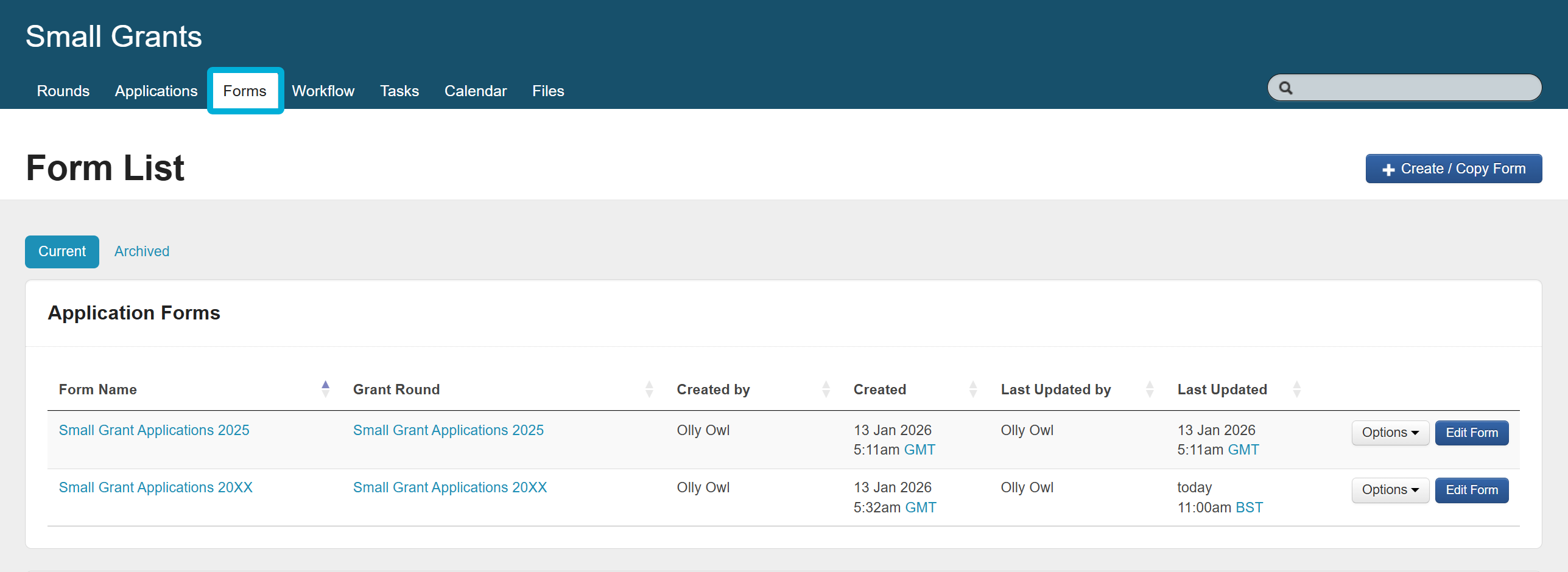
Tip: Forms can be copied into another program. This can be helpful whenever creating new programs from scratch, or for testing forms in a separate dedicated testing program.
Form categories
Forms are sorted into two categories – external and internal.
External forms are for your applicants to fill out. They will log in to your SmartyGrants applicant site to fill out and submit them.
Internal forms are for your internal staff to fill out. Applicants cannot see internal forms.
Form types
The five form types are:
Application
Assessment
Acquittal
Administration
Variation
Tip: The most important thing to remember is that the name of a form type does not limit its purpose. An application form can be used as an expression of interest form, an assessment form recording an eligibility check, and so on.
The biggest differences between the forms types are whether applicants can or cannot access it (internal vs external), and where the form will live on an application record.

Application forms (External)
Application forms are used to capture application details from applicants.
Only an application form can serve as the first form in a round (this is called an Initial Application Form). However, as with any other form type, the purpose of this form can be flexible.
For example:
An application form called EOI, designed to capture expressions of interest to your funding program.
An application form called Funding Agreement, designed to capture consent to funding terms and conditions.
Acquittal forms (External)
Acquittal forms are typically created to capture information on how funding has been used.
For example:
An acquittal form called End of Grant Reporting, designed to capture details on project outcomes and how the funding was spent.
An acquittal form called Milestone Progress Reporting, designed to capture updates on an ongoing funded project.
You decide when and to whom these forms are made available. However, note that these forms can only be added to applications that already have at least one application form submitted.
Assessment forms (Internal)
Assessment forms are typically created so that an assessor – whether an internal staff member or an external partner – can record reviews, checks and assessments.
For example:
An assessment form called Completeness check, designed for a program officer to record whether a newly submitted application has any discrepancies.
An assessment form called Assessment, designed for an external assessor to record their scores and comments for an application against the program’s assessment criteria.
Administration forms (Internal)
Administration forms are typically created so that additional ‘internal-only’ information can be recorded.
For example:
An administration form called Customer details, designed to record details from a CRM / FMS into SmartyGrants (vendor number, supplier code, etc).
An administration form called Onboarding, designed to capture details about an initial call with an applicant or a site visit.
Variation forms (External)
These forms are only available if you have the Variations feature turned on. Variation forms are optional, and they are used to manage changes in the terms, conditions or purposes of an existing grant agreement.
Variations can be enabled for your account at no cost by contacting the SmartyGrants support team.
Data types
In SmartyGrants, there are four main types of data that can be captured via a form:
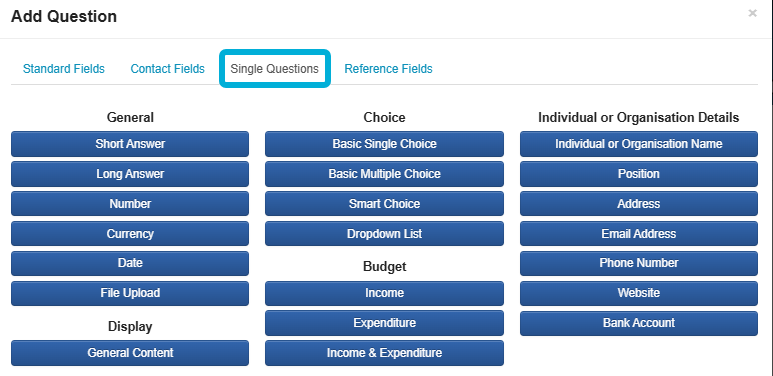
Single questions
Standard fields & standard sections
Contact fields & contact types
Reference fields
Each data type serves a key purpose in how data is recorded, displayed, and referenced in-system.
During implementation, understanding the different types of data SmartyGrants captures is critical. They play a pivotal role in how your program(s) are translated into the system by your Implementation Manager.
When you understand the difference between these data types, and what function they serve, you will be able to offer meaningful and practical feedback to the form, workflow and reporting design process.
Navigation
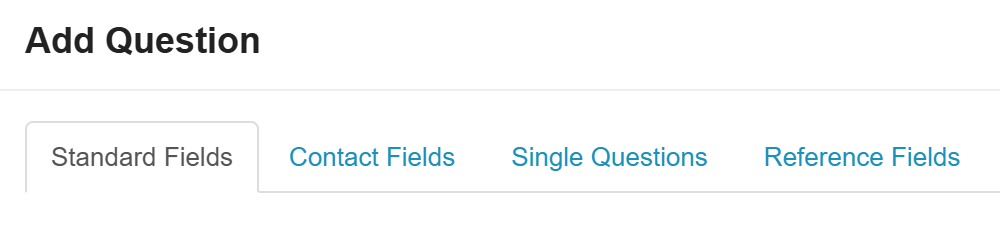
All data types can be seen while creating or editing a form in the form editor (Program → Forms tab).
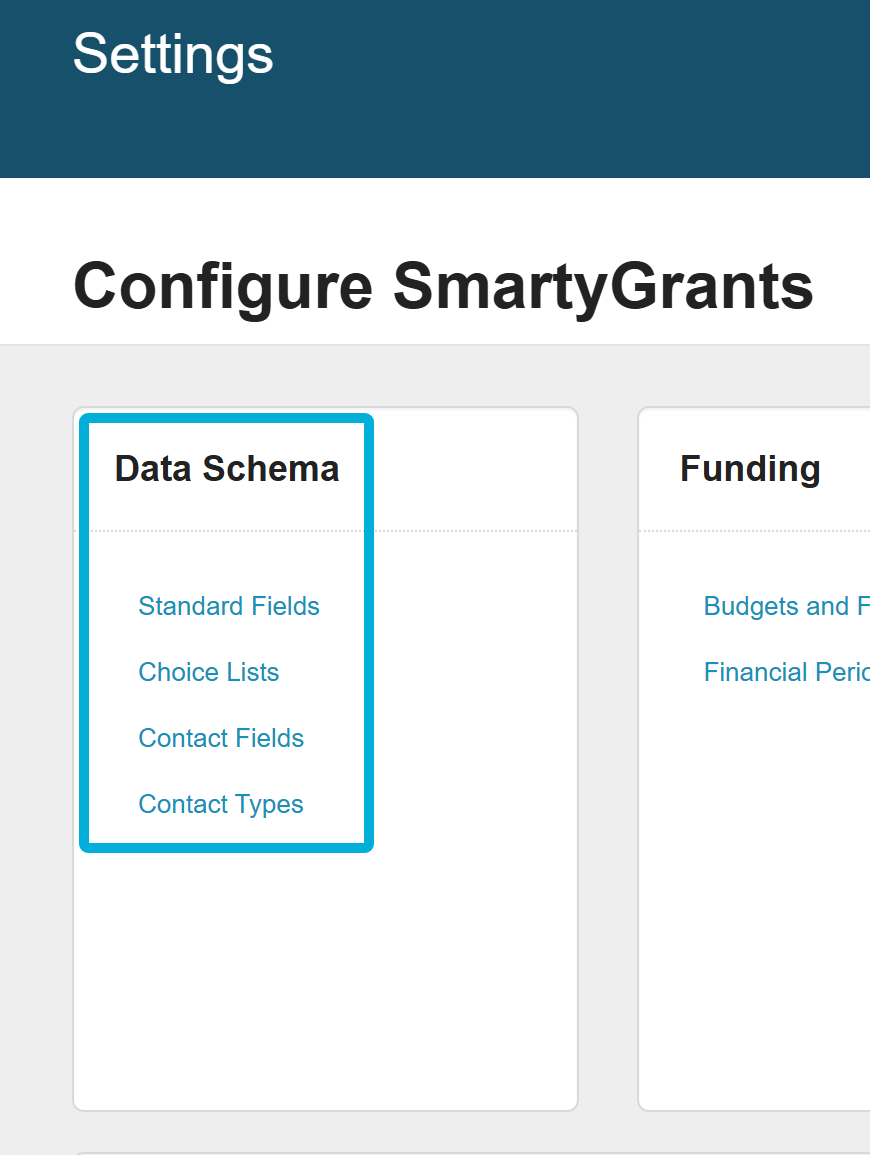
Standard Fields (and standard sections), Contact Fields and Contact Types are created and maintained in the Settings (cogwheel icon) under Data Schema.
Single questions
Single questions are fields that are created in a specific form, in a specific program only. They are used for capturing data that belongs to one program and isn't shared by, or common to, other funding programs you run.
Single questions:
Can be labelled and designed however you wish
Responses are searchable and filterable
Reportable, but only for that specific program (you can't report on single-question data across multiple programs)
You can create as many single questions within a form as you wish. Just note those single questions only belong to that form, and can’t be used on other forms.
Tip: Single questions are for program-specific questions.
For example, in one program you ask applicants to select whether a festival is a one-off or runs annually. Since that program is the only program you run that funds festivals, using a single question to capture this data is a good fit.
However, in the same form, you also ask applicants to provide the address where the festival is being held. This would be considered the ‘project location’, the location their project (event) is taking place. A project location is not unique – other programs will likely also ask applicants where their project takes place. Because of this, a single question is not the best fit and a Standard Field would be a more suitable option. More information on Standard Fields below.
Standard fields and standard sections
Standard fields and sections are standardised fields that are common to all of your programs. Administrators can create and configure these in Settings.
Standard fields have three key properties:
Editable: They can be edited outside of a form.
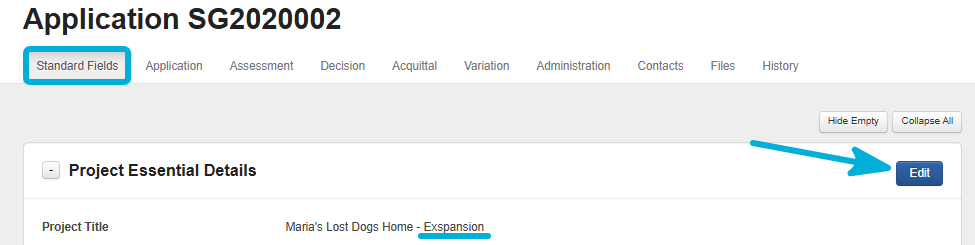

Account-wide: Their labels are locked so the data schema can't be tampered with. This is what allows them to be added to any form in any program, and be reportable across multiple programs at once.
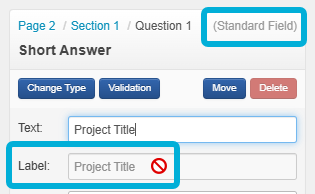
Tip: While the label of a standard field and standard section can’t be changed, note that:
Labels aren’t shown to your applicants, and
Question text in a form can be customised.
For example, Project Title might be shown as ‘What is the name of your initiative?’ in one form in one program, and ‘Event Name’ in another.
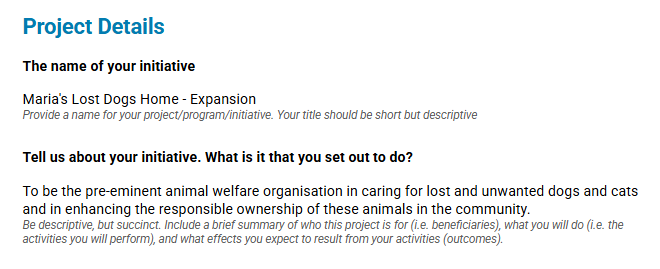
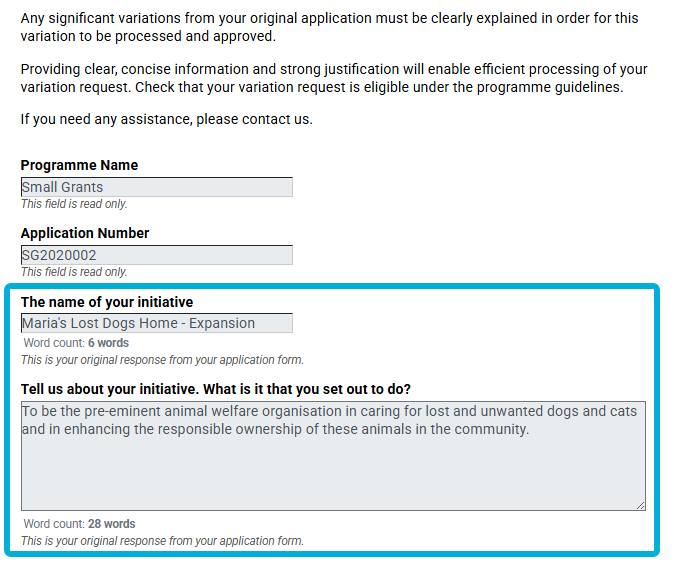
Flow-through: They allow responses to flow between different forms (in a read-only or editable state).
For example:
On an Application form:
On a Variation form:
There are default standard fields, but Administrators can create as many as needed.
Tip: The default standard fields have been designed to be universal. They have been designed by drawing on 20+ years of data gathered about grantmaking, from funders of all types and sizes.
Where a default standard field exists, use it!
Some of the common ones include Project Title, Project Start Date, Project End Date, Project Rationale, and Total Amount Requested.
Contact fields and contact types
Contact fields and types are standardised fields specific to contacts. You’ll learn more about contacts later.
Contact fields and types define:
The types of relationships a contact can have to an application (Applicant, Project Contact, Partner, Referee, and so on).
What contact information is captured (email address, phone number, website, and so on).
Once a form using a contact field is submitted, a new Contact record is created. It will automatically create an association between that record and the Application record (as demonstrated below).
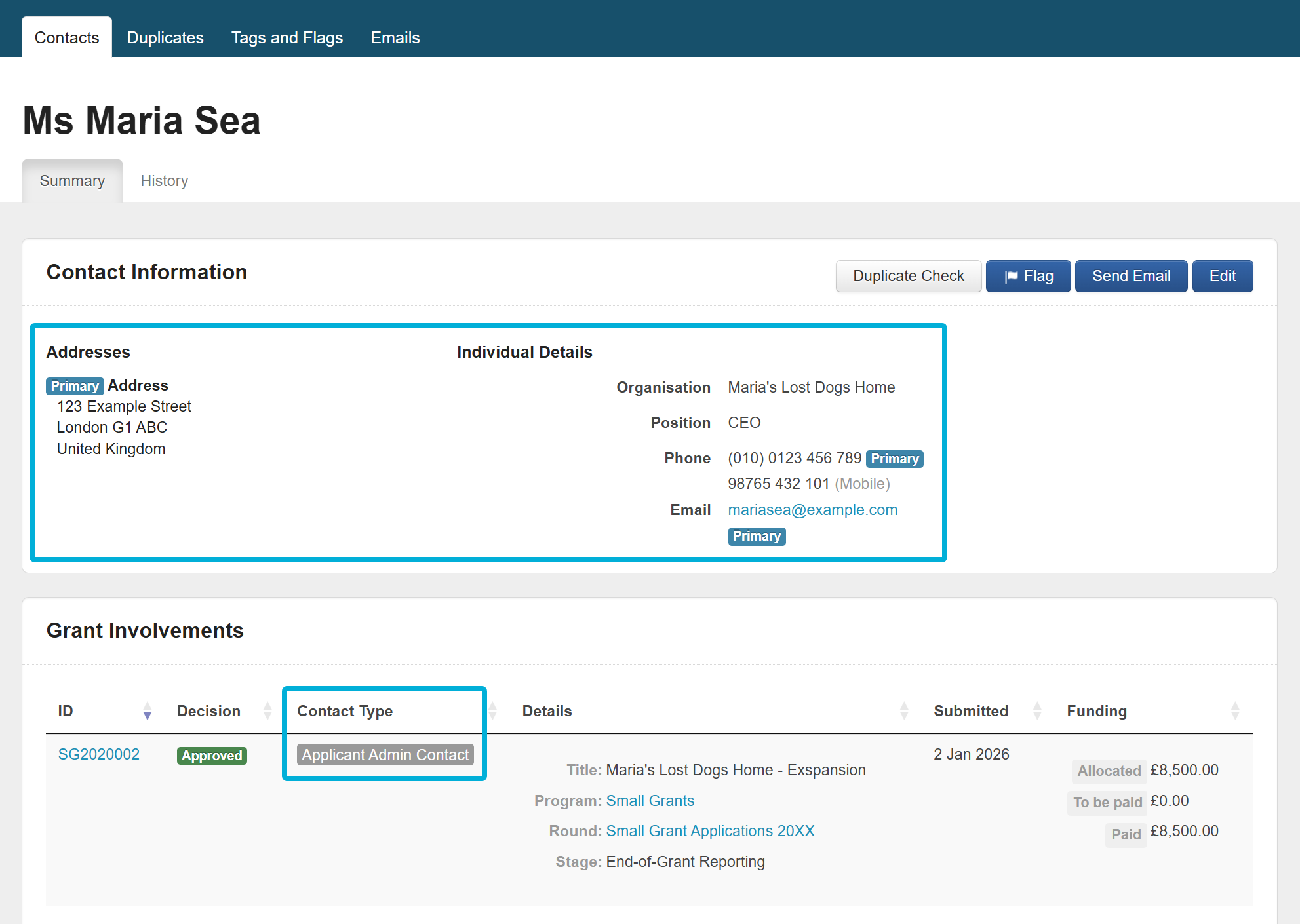
There are default contact fields & contact types, but Administrators can create as many as needed.
Reference fields
Reference fields allow data to be displayed as ‘read-only’ on a form. The data in reference fields typically does not come from a form response.
Types of reference fields include:
General ‘system’ information – like Application ID, Program Name, Round Name.
Decision and Funding records – like Decision status, Total Amount Allocated, Default Payee.
Reference fields are sourced from system data. As such, unlike the other data types, new reference fields cannot be created.
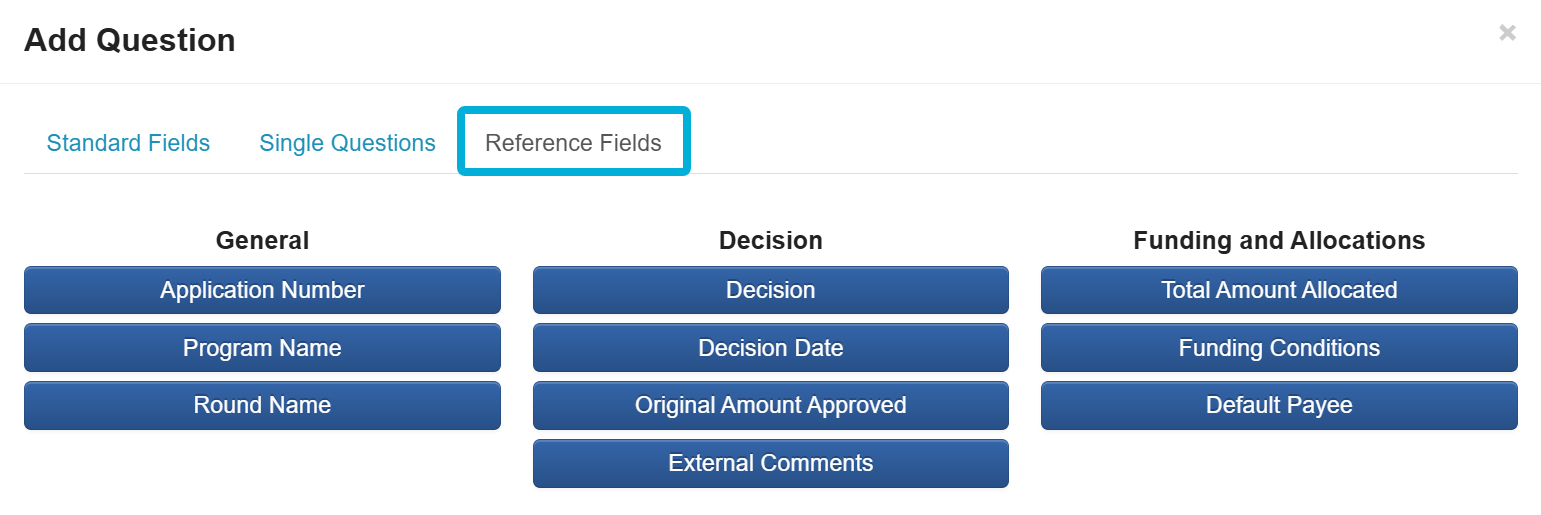
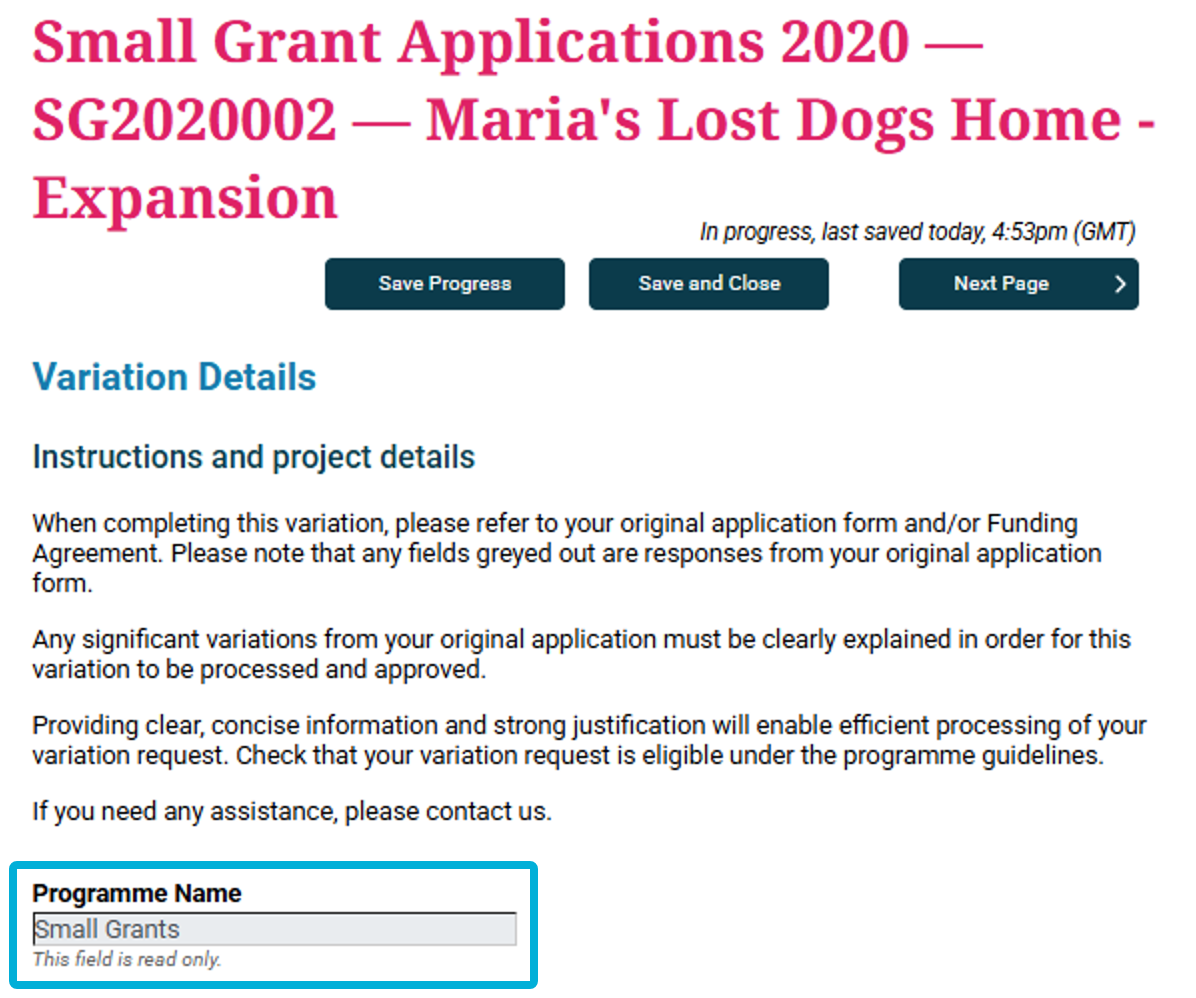
Tip: While the label of a reference field can’t be changed, the question text in the form can be.
For example, Program Name might be shown as Grant Name, program Name, Scheme, and so on.
Where to next?
Head to Workflow.