Testing
This module walks through implementation testing. Understanding the SmartyGrants elements involved will allow you to carry out form testing, provide meaningful feedback, and make changes yourself as you move through implementation.
Table of contents
Manage Site and Applicant Site
As a refresher, your account has access to your organisation’s Manage Site and Applicant Site.
The Manage Site is where you manage your funding programs. It is where you will perform the vast majority of your day-to-day tasks, activities, and other grantmaking actions. Applicants cannot access your Manage Site.
This site can be accessed via https://manage.smartygrants.co.uk
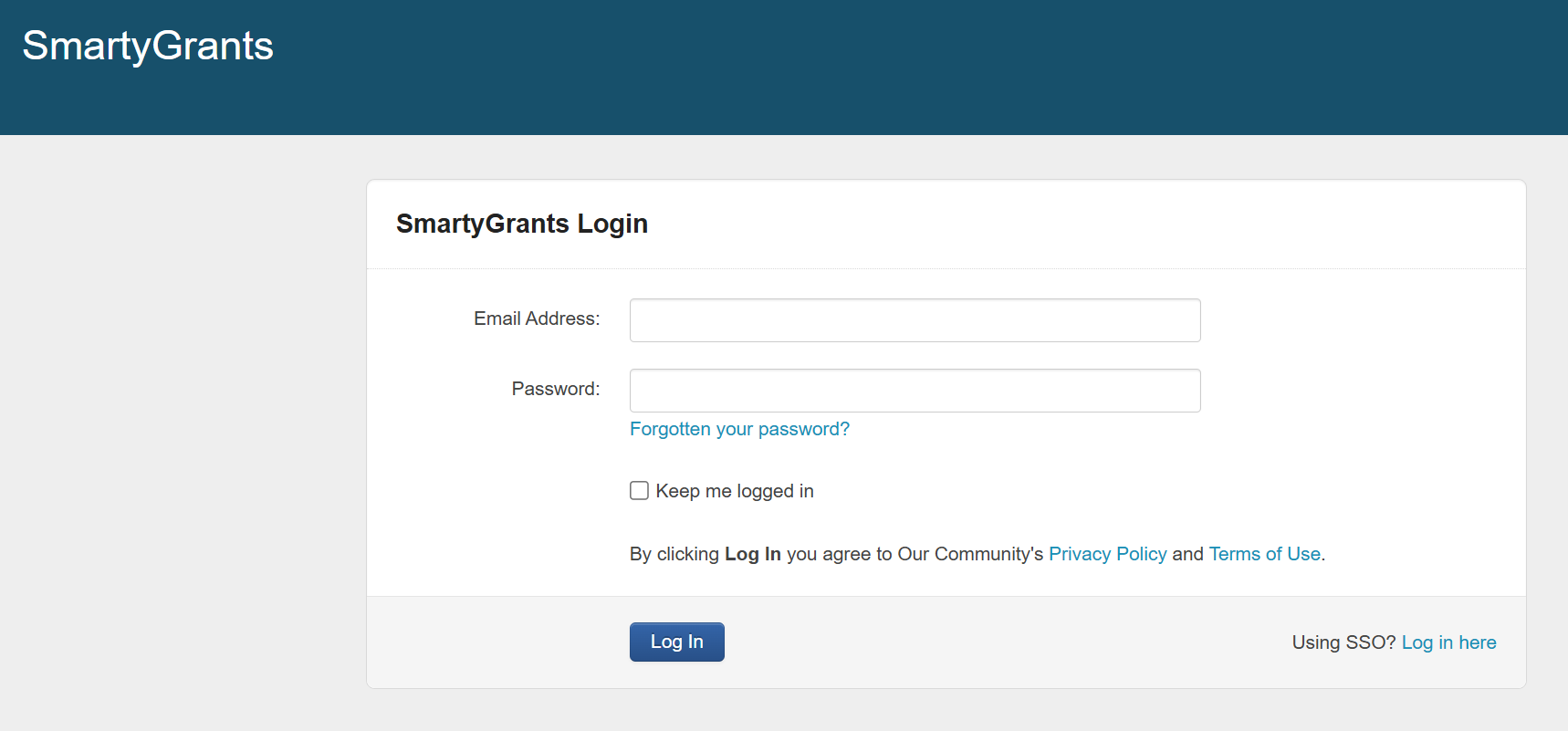
The Applicant Site is where applicants go to apply for your programs (Start a submission). Any open rounds will appear on your applicant site, and your applicants will log in to either view or fill out forms that belong to a specific submission.
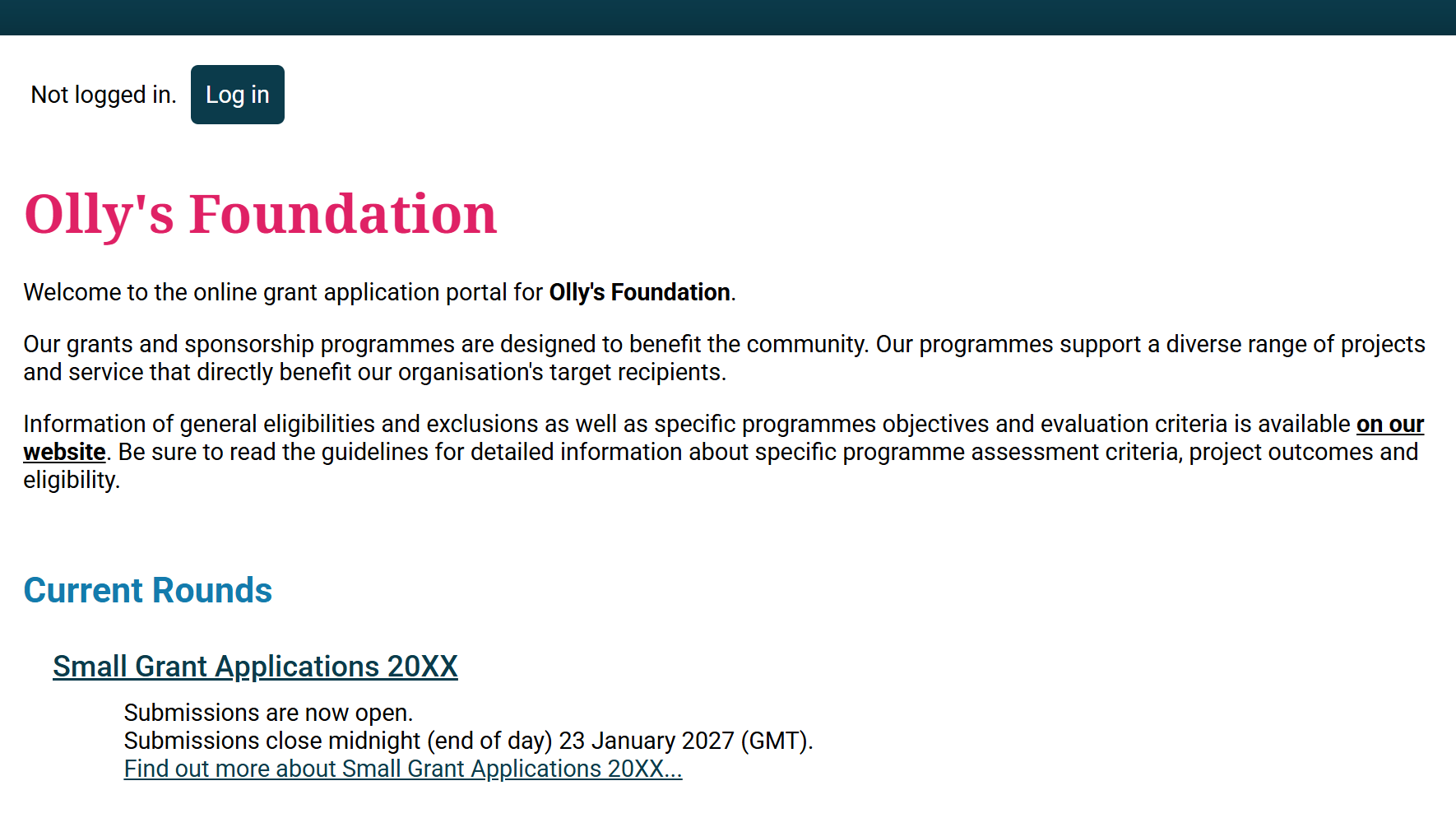
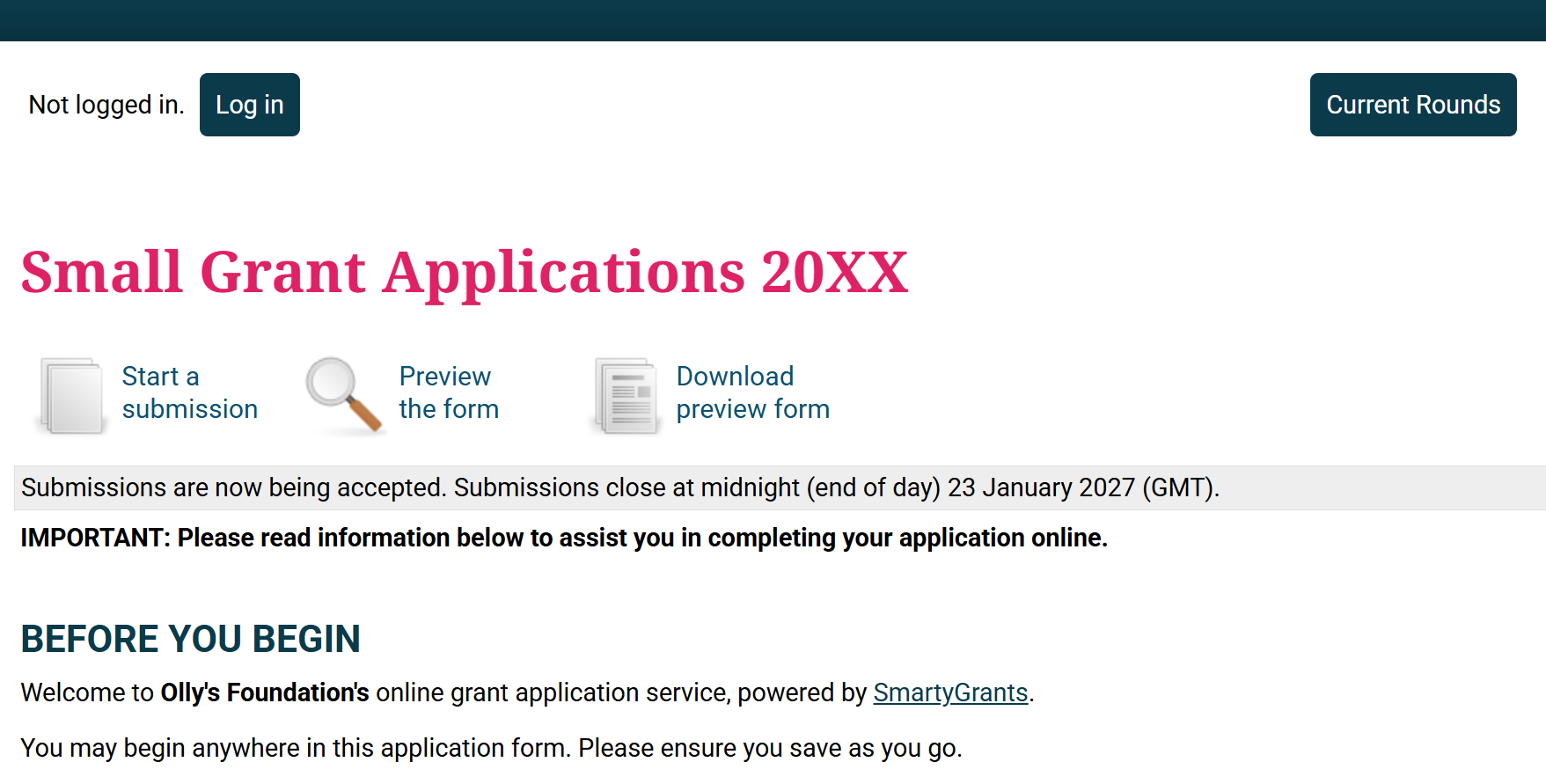
This site is also where you test the applicant experience. Applicants use the Applicant Site to interact with your programs, so all applicant-facing testing is carried out there.
Your Applicant Site can be accessed via your specific Applicant Site URL. You were given this URL during onboarding. If you cannot find it, an administrator can retrieve it from your account Settings.
Once you know your Applicant Site URL, we recommend bookmarking it for easy reference.

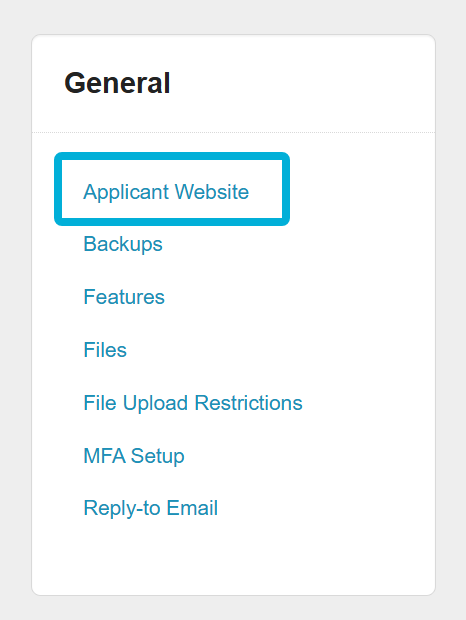
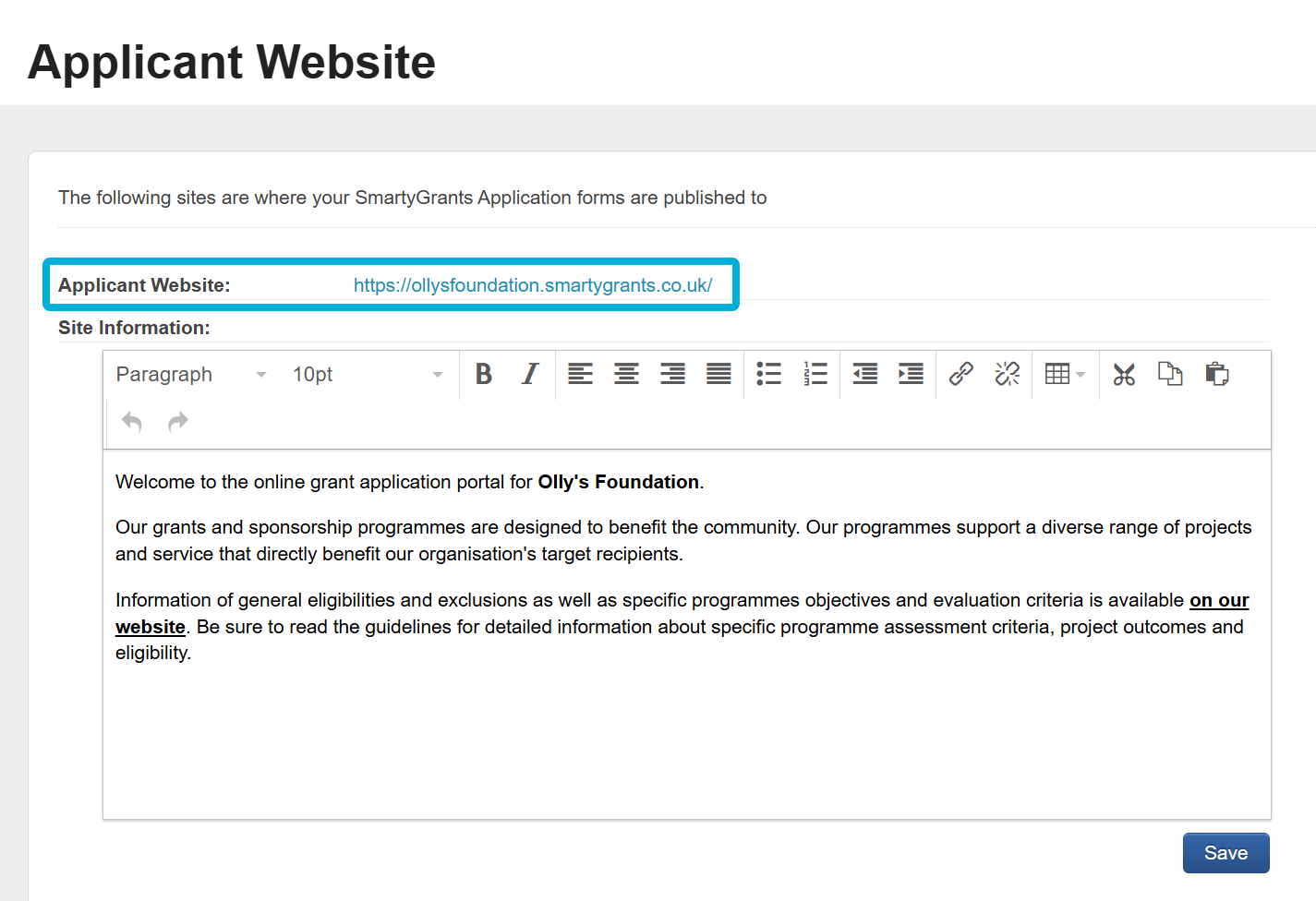
Tip: Once you have a published round, you’ll be able to access your Applicant Site directly from the round page. This will be extra helpful when testing forms (more on this later).
During implementation, you will be spending a lot of time navigating both the Applicant Site and the Manage Site. It’s important that you feel confident with the difference between the two, and with knowing which site you’ll need to log in to for testing.
Testing the initial application form
To understand how to test the initial application form, please complete the LMS course below:
Creating test rounds and testing application forms (≈ 20 minutes)
Note: CLASSIE (mentioned in this training) is not currently available outside of Australia and New Zealand. Excluding CLASSIE, test rounds and testing applications work exactly the same across all other regions.
Once you have finished this course, return to this page and continue from Other testing below.
Other testing
As part of testing, you may be asked to test other parts of the grantmaking process beyond the initial application form. This could include testing for:
Another application form (for example, a full application form, if you run a two-stage process)
Other forms (internal or external)
Workflow automations
Tasks
To carry out other testing, you must have at least one submitted test application. You need a submitted application before you can add further forms, create tasks, run reports, and so on.
Tip: For the submitted test application, we recommend using one you started while testing the initial application form.
However, you can create and submit as many new test applications as you need. The more test data you have, the better your testing will be.
Once your test application exists in the Applications view, you can treat it as you would a real application. All test applications will have -TEST appended to their application number.
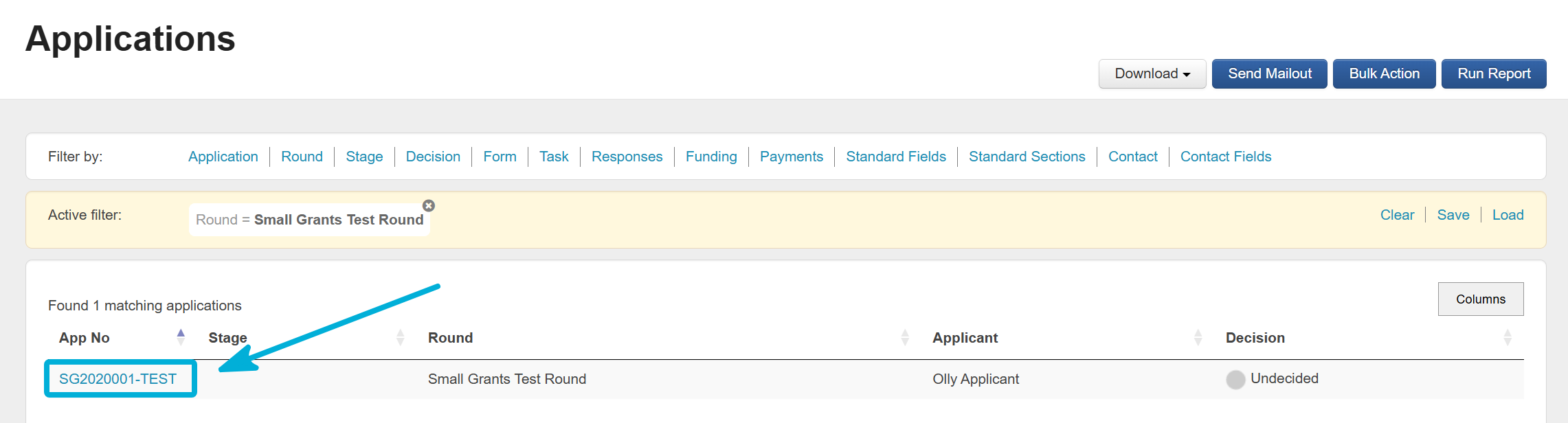
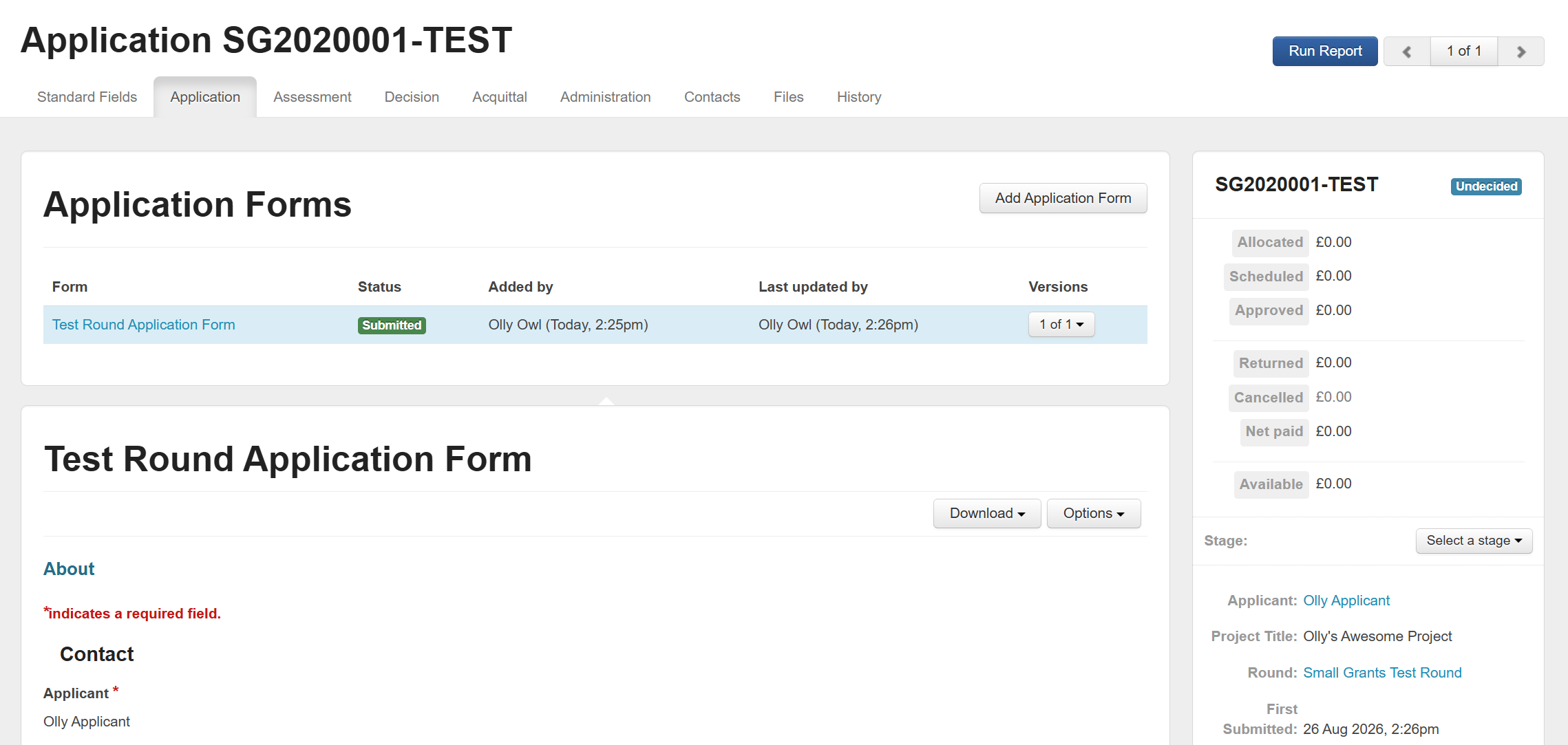
Depending on the testing you’d like to carry out, you can visit any of the Help Hub articles below:
Test another application form
Once added, log into your Applicant Site, select My Submissions, and follow the instructions here to access and test the newly added form.
Test an internal form
Attach and complete an Administration form
The linked article explains how to add administration forms, but the process is the same for any other internal form – just replace the Administration tab with the relevant form tab on the application.
Test a workflow process
Assigning applications to a stage
The linked article provides information on moving applications between stages.
This article covers tasks in general, but note that tasks that do not require you to fill out a form, you’ll need to manually change the status of a task to complete it. You can do this from an application record’s sidebar, in the Tasks view, or from a bulk action.
Test a report
The form builder
To understand how to navigate the form builder, please complete the LMS course below, then return to this page.
Form builder overview (≈ 10 minutes)
Once you have finished this course, return to this page and continue from Where to next? below.
Where to next?
Once you feel confident with the topics above, you can begin implementation testing.
When you’re ready to publish your first live grant round, head to Go-Live.