Overview - Programs Rounds and Applications
Table of contents
Programs
As a grantmaking organisation, you may run various funding schemes or programs for different grant-giving purposes. For example, your organisation may run a Cultural Diversity Grant scheme, along with an Environmental Grants program.
In SmartyGrants, you create a program for each. A program acts like a folder containing all of a program's applications, rounds, forms, tasks and so on.
Note: SmartyGrants refers to a programme or scheme as a Program. To keep language consistent and to match what’s shown in-system, all technical documentation will use the ‘program’ spelling variation.
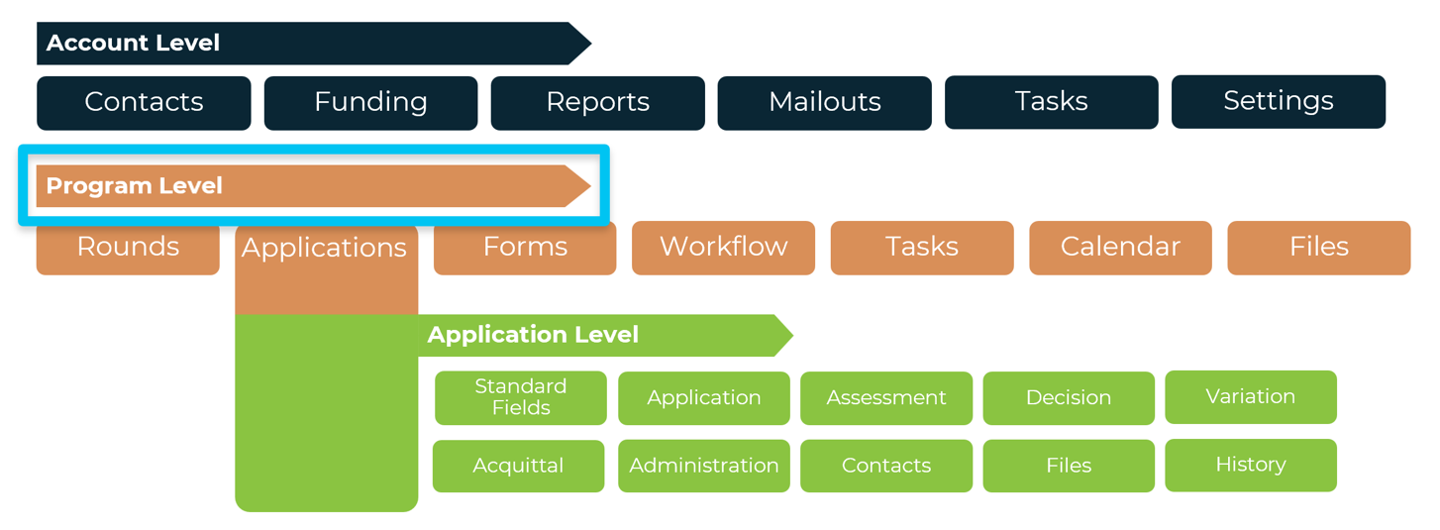
During implementation, your Implementation Manager will create and set up the program(s) for you that were agreed as part of the project’s scope.
However, you will update and maintain these programs, and moving forward, you will also need to know how to create and maintain new programs on the system.
As next steps, to learn more about programs in SmartyGrants, please complete the LMS course below:
Creating and managing programs (≈ 10 minutes)
Once you have finished this course, return to this page and continue on from Rounds below.
Rounds
In SmartyGrants, a Round is a period of time during which your community can apply for a grant within a given Program (program). Outside of SmartyGrants, this is also referred to as a call or intake period. Rounds act like a ‘container’ for applications.
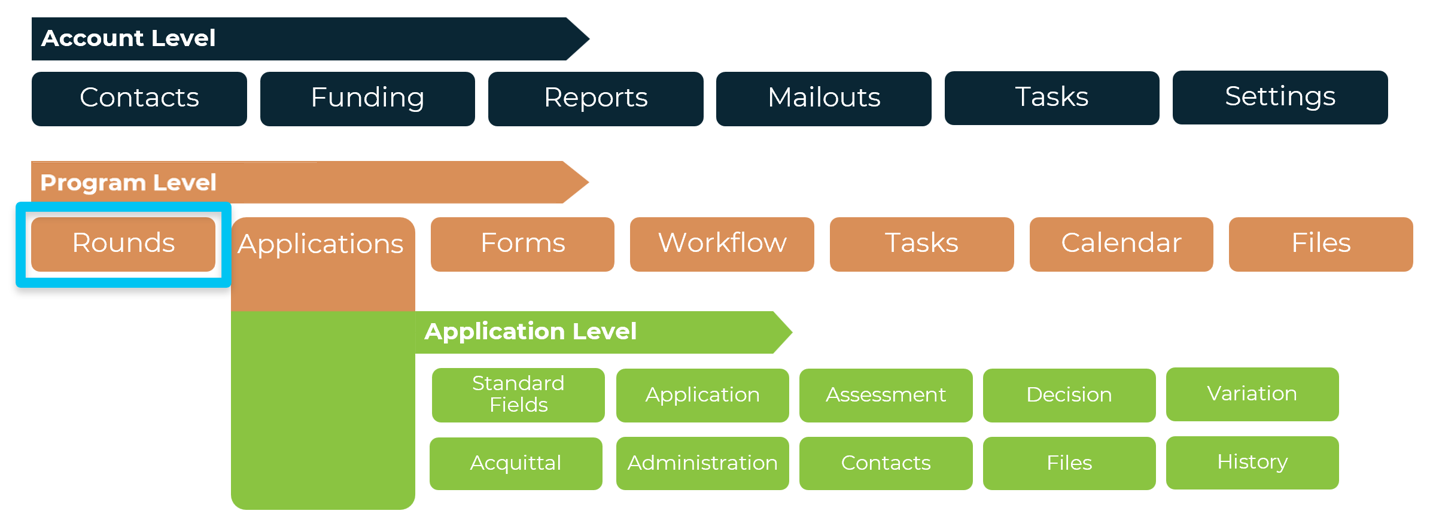
During implementation, your Implementation Manager will create and set up the initial relevant Public/Private rounds, for when you’re ready to go live with your new program.
However, it’s important to understand how rounds work, so that:
You know how to create a test round (so you can test your forms),
You can collaborate with your Implementation Manager on how you will use rounds in the system, and
So you know how to make your own Public/Private rounds moving forward.
Navigation
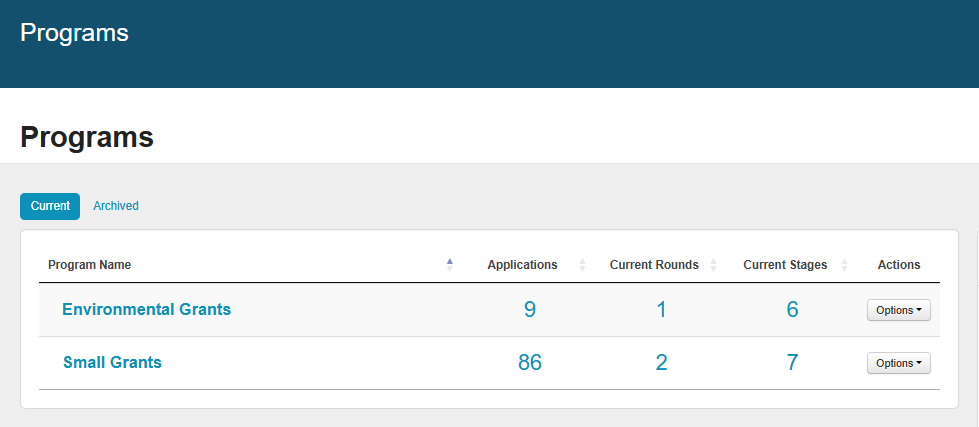
To navigate to any round in the system, select the Programs (notepad) icon, then select the name of a round.

Round visibility
An applicant can only see and start a submission within a round if:
a round exists, and
the round is published, and
the round has an Initial Application Form (more on this later).
Some rounds are also hidden from view unless one has a direct access link (more on this later).
Round type
A round can either be:
Public – anyone can see and start a submission in that round,
Private – only users with a direct link can see and start a submission (round is otherwise hidden),
Test Round – identical to a private round except these rounds can be deleted, as they are only used for testing forms and processes.
Public rounds display on your applicant site homepage.
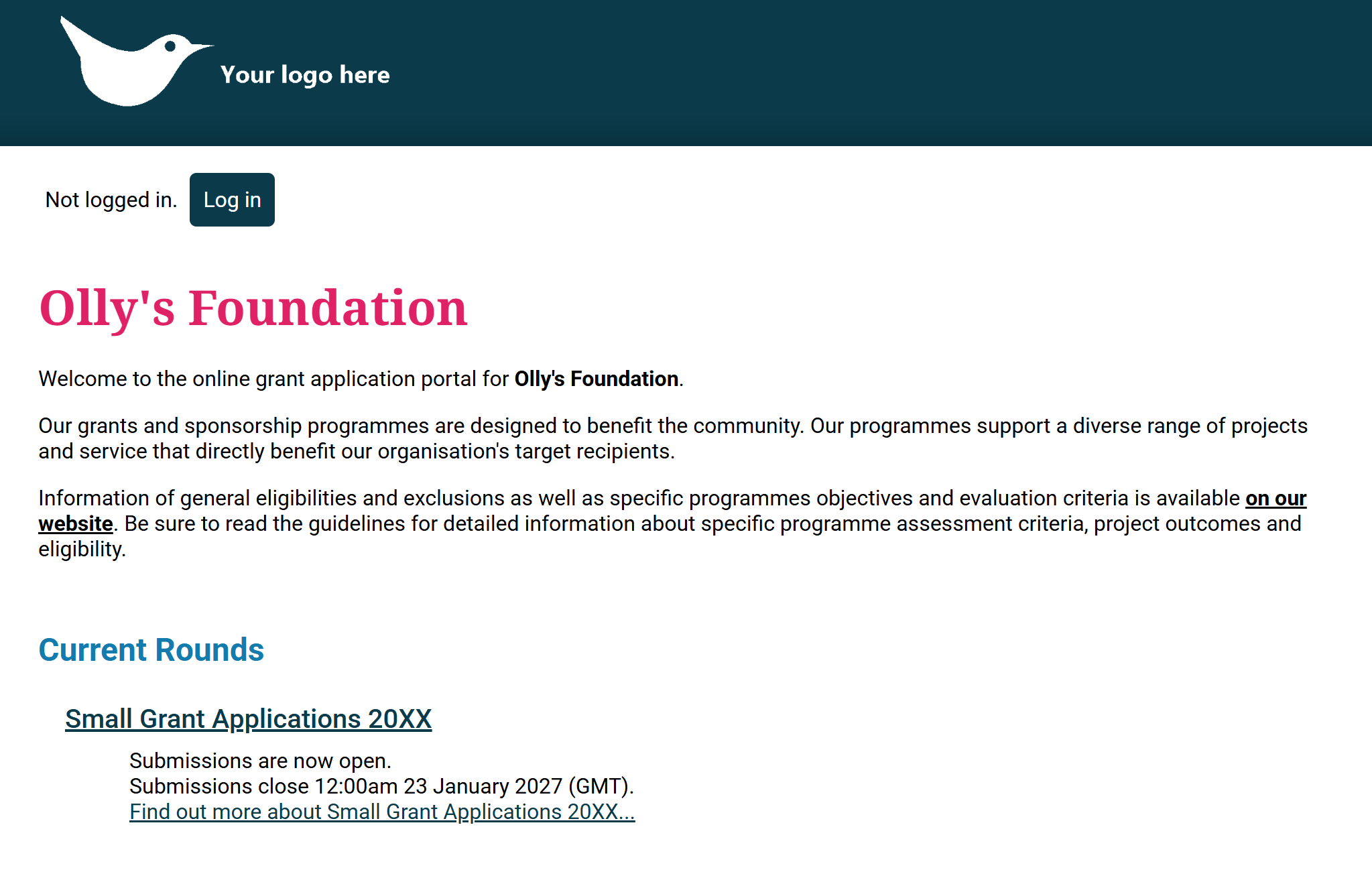
Note: While all applicant sites have the same core elements – a homepage, a list of rounds, login page, etc – they will look different to the image shown above.
This is because each applicant site is designed to mimic the look and feel of your own organisation’s branding and existing website(s). Keep this in mind when reviewing any screenshot of the applicant site across the Help Hub.
Open and Close periods
While a round is accepting applications, it is considered ‘open’.
While a round is not accepting applications, it is considered ‘closed’.
You can control whether or not a round is open or closed by configuring the round’s start and finish date/time.
A start date/time is required for the grant round to be created. A finish date/time is optional. If set, applicants can only submit applications prior to that date/time.
If no finish date/time is set, the grant round will be open-ended, and can later be closed as needed by editing the round to introduce a finish date/time.
Defined open period:
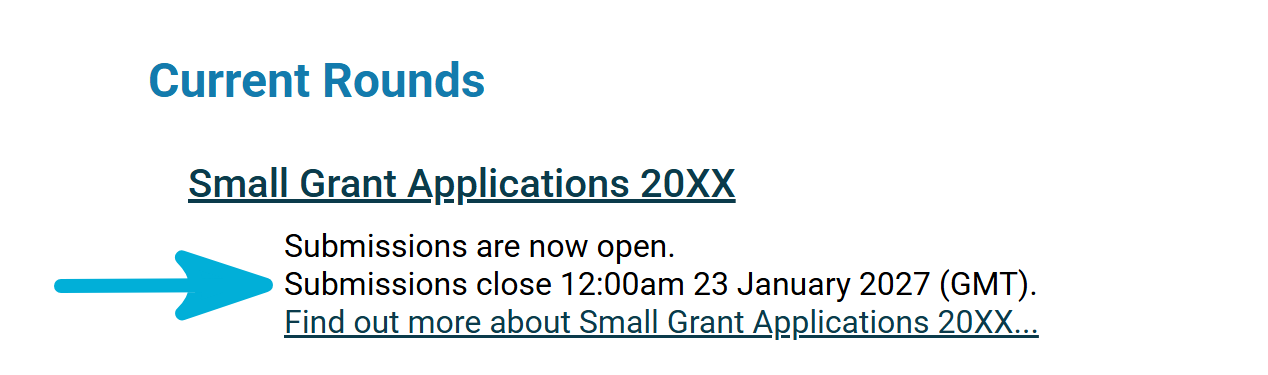

No defined open period (open-ended):

Once a round’s finish date/time has passed, the ability to start a submission disappears. If the round is public, it will also be removed from your applicant site’s homepage.

Round access
Each round has its own unique webpage link (round URL) on your applicant site. Applicants can open your round in any web browser, on any device with an internet connection.

Note: If you have purchased the Custom Domain add-on, this URL will include your organisation’s name (for example, grants.yourorganisation.com/roundname).
Otherwise, this URL will always contain .smartygrants.co.uk (for example, yourorganisation.smartygrants.co.uk/roundname).
Applicants can get to a round by:
Opening that round link directly, or
For public rounds only, by going to your SmartyGrants applicant site homepage.
Some organisations also opt to put direct round URLs on their own website. That way, applicants can get to their rounds in SmartyGrants directly from their website. To do this, you would need to co-ordinate with your internal IT team.
Warning: With private rounds, applicants must use the direct round URL to access these rounds. However, anyone with this direct link can access and start a submission.
You should exercise caution when sharing a private round link. A good rule of thumb is to never share that link on a website or document that can be accessed by the general public.
Applications
An Application (often referred to as an ‘application record’) contains all information relevant to a single application.
As soon as an applicant starts a submission within a round, an application is automatically created. While an applicant is filling out their submission, it is treated as an unsubmitted application. You do not have access to the applicant’s responses at this point.
Once an applicant submits, it becomes a submitted application. You can then see the applicant’s responses, update the record, and add new data to it as the application moves through the grant lifecycle.
Application records are internal only. Applicants cannot see them.
An applicant can only see their submitted or in-progress forms (more on these later) by logging into your applicant site.
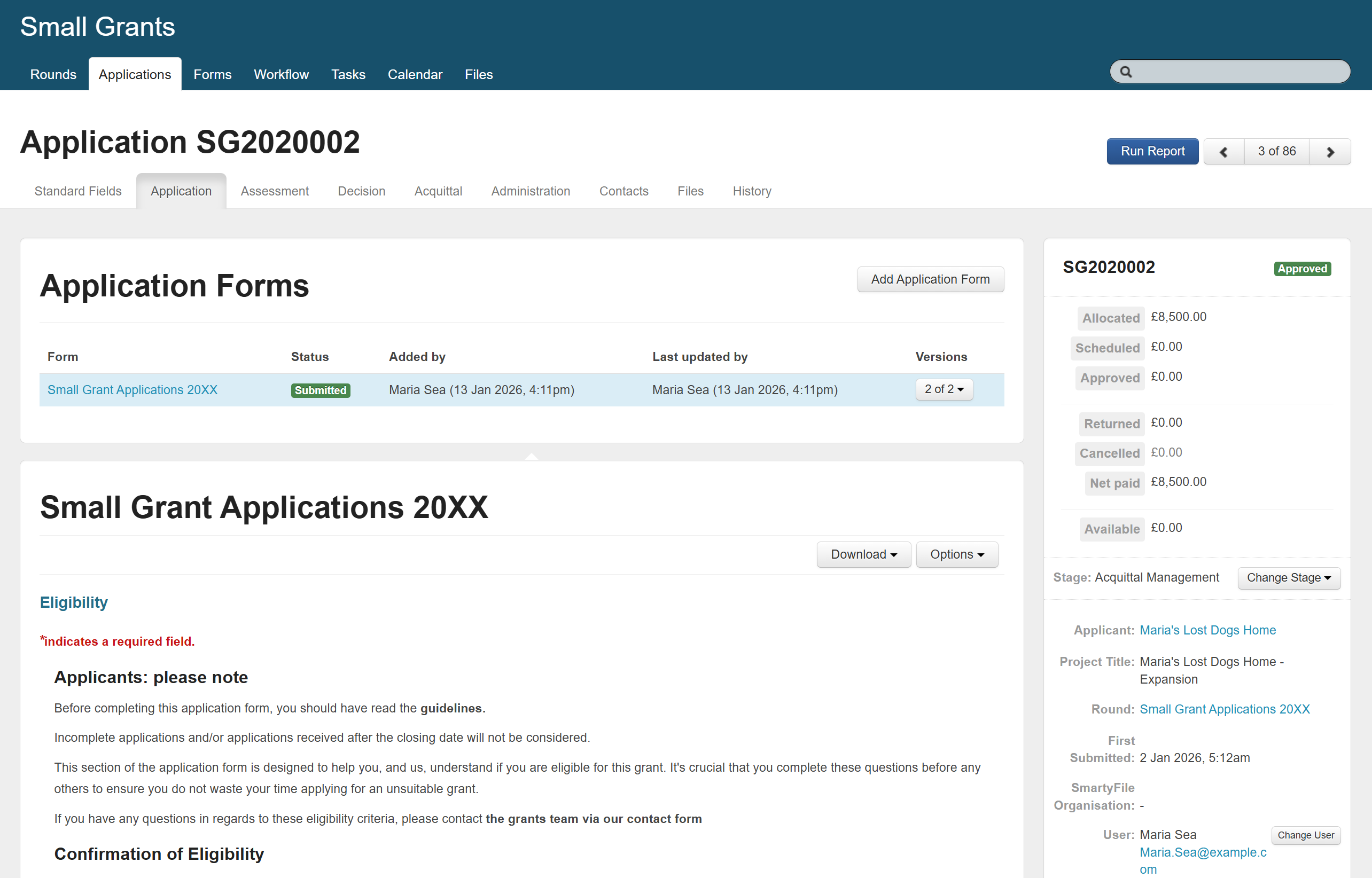
Tip: An application is just that – a single record, where everything you need to know about that application lives.
All data in an application is filterable and reportable.
Some day-to-day tasks or actions are carried out by going into individual application records. However, many others can be done outside of a specific record – and some actions can even be done en masse to many applications at once!
Navigation
There are many ways to get to a specific application record.
The most common methods include:
From the Applications tab, under Programs:
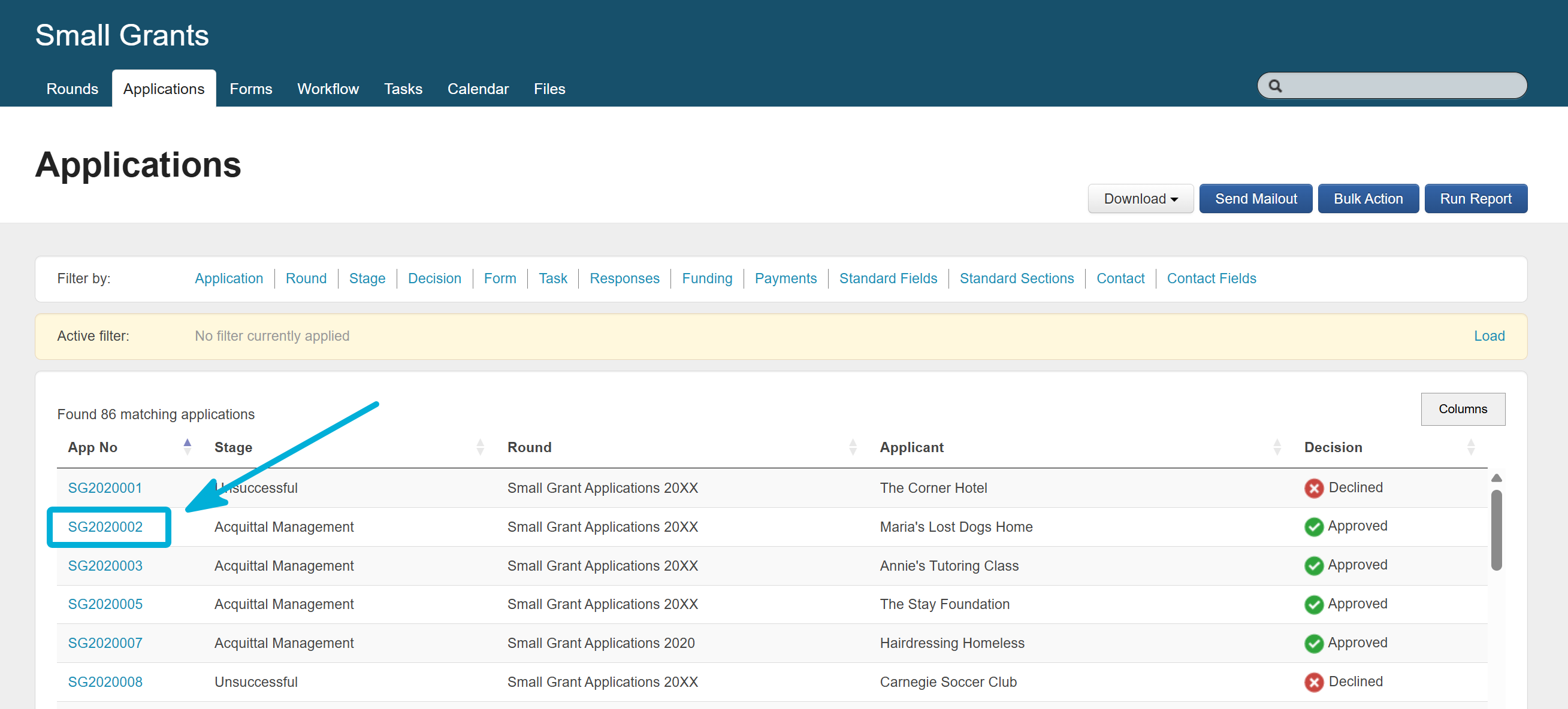
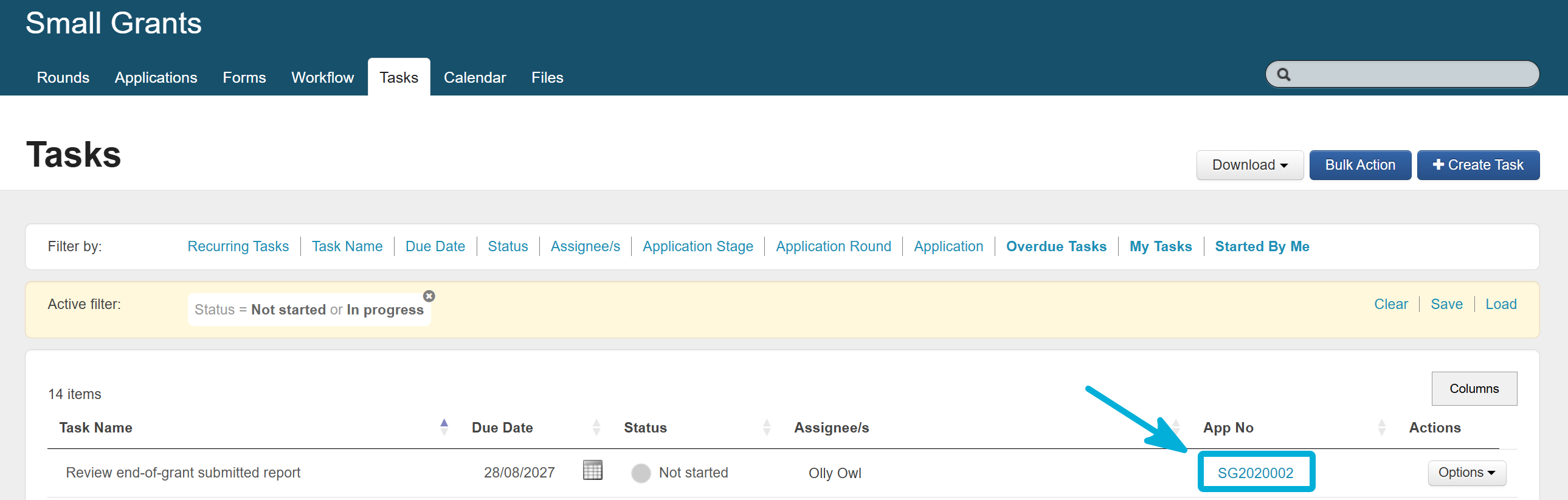
From the Tasks view:
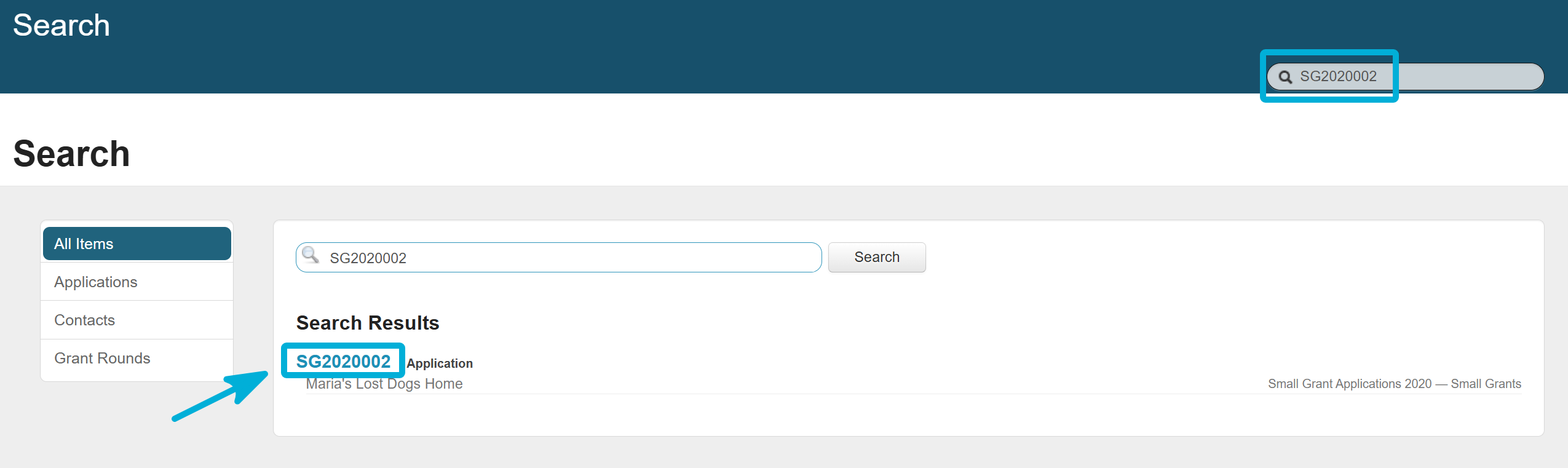
Searching for the application using the Search bar:
Tip: This is by no means an exhaustive list!
Recorded details
An application record contains two basic types of details:
Information contributed by the applicant, and
Information contributed by internal staff (and external assessors, if applicable).
Type of information | Sourced from | Image |
|---|---|---|
Any completed external forms | Applicants | 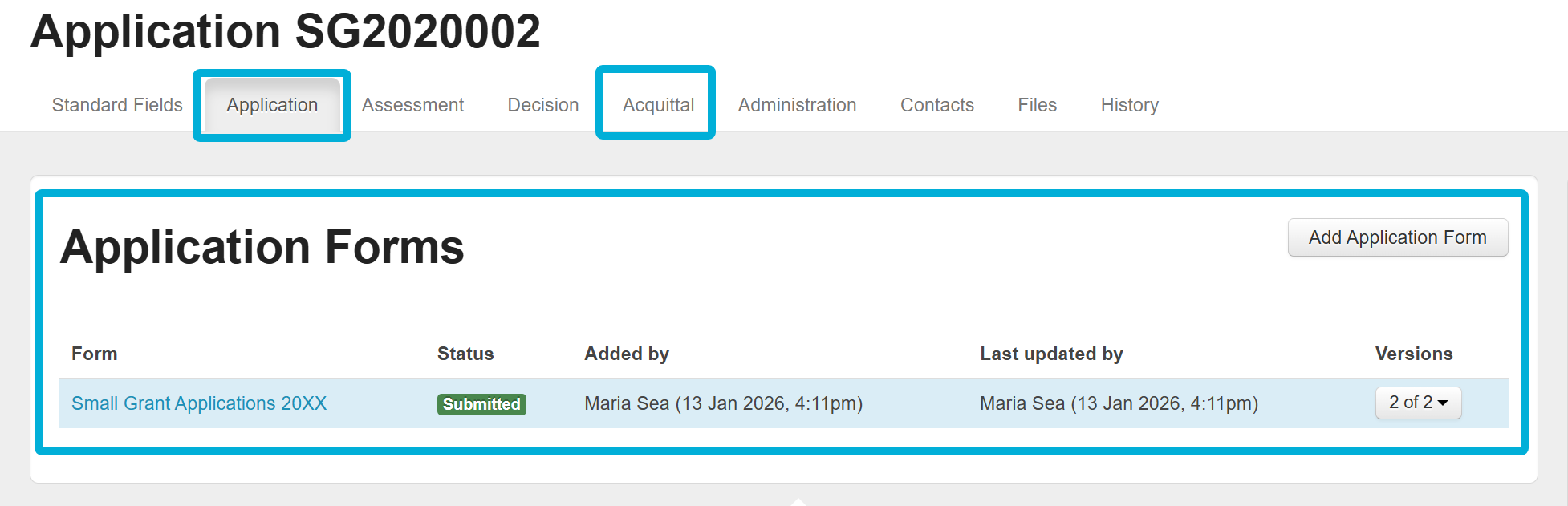 |
Any open or completed internal forms | Internal staff | 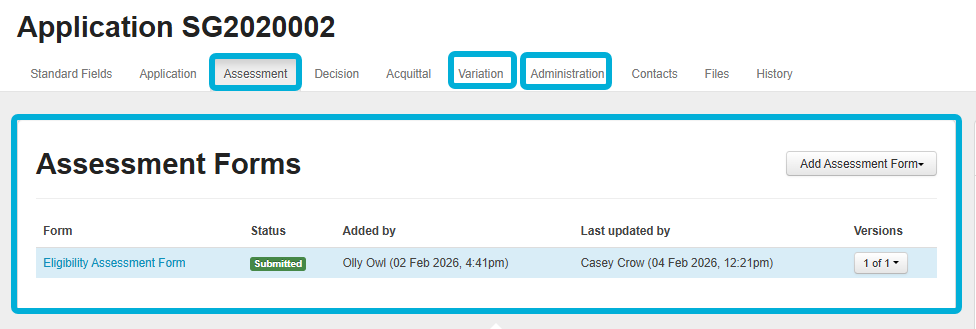 |
Contact information | Both | 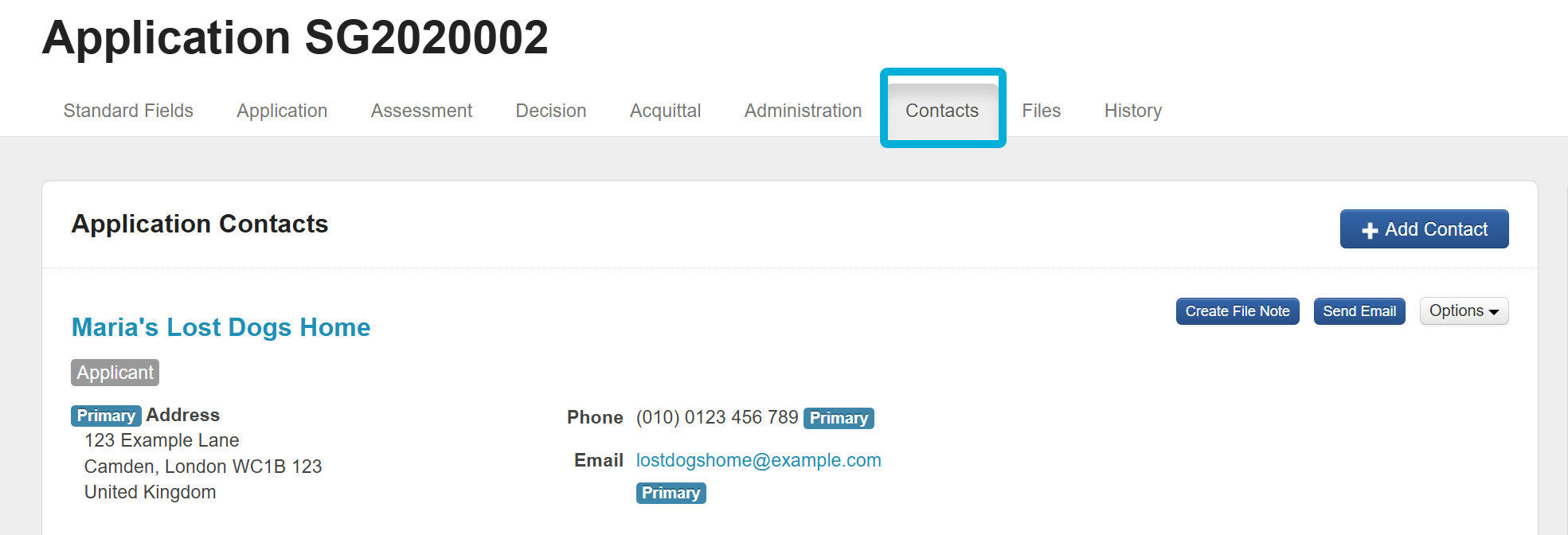 |
Correspondence history | Internal staff | 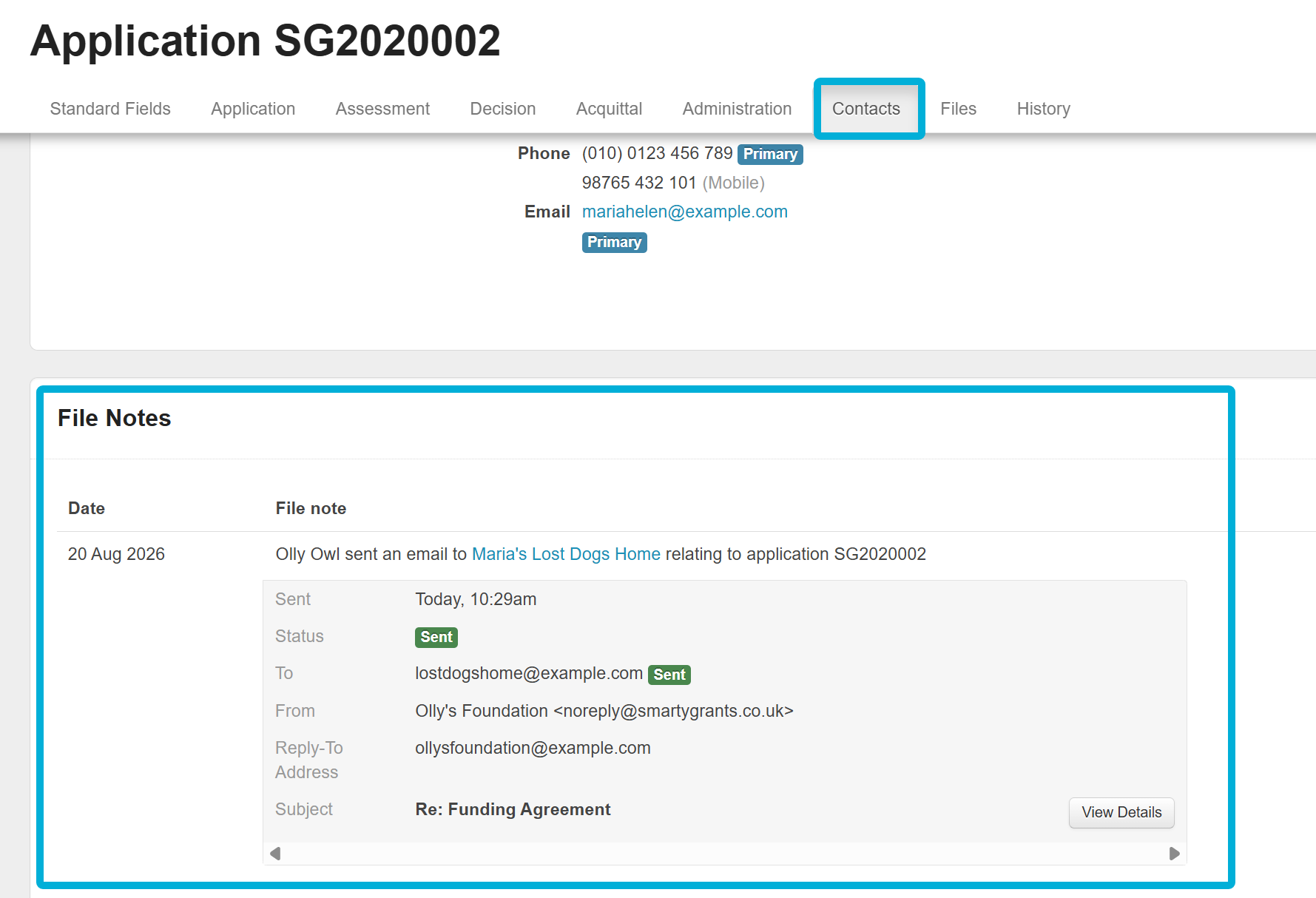 |
Decisions and funding records | Internal staff | 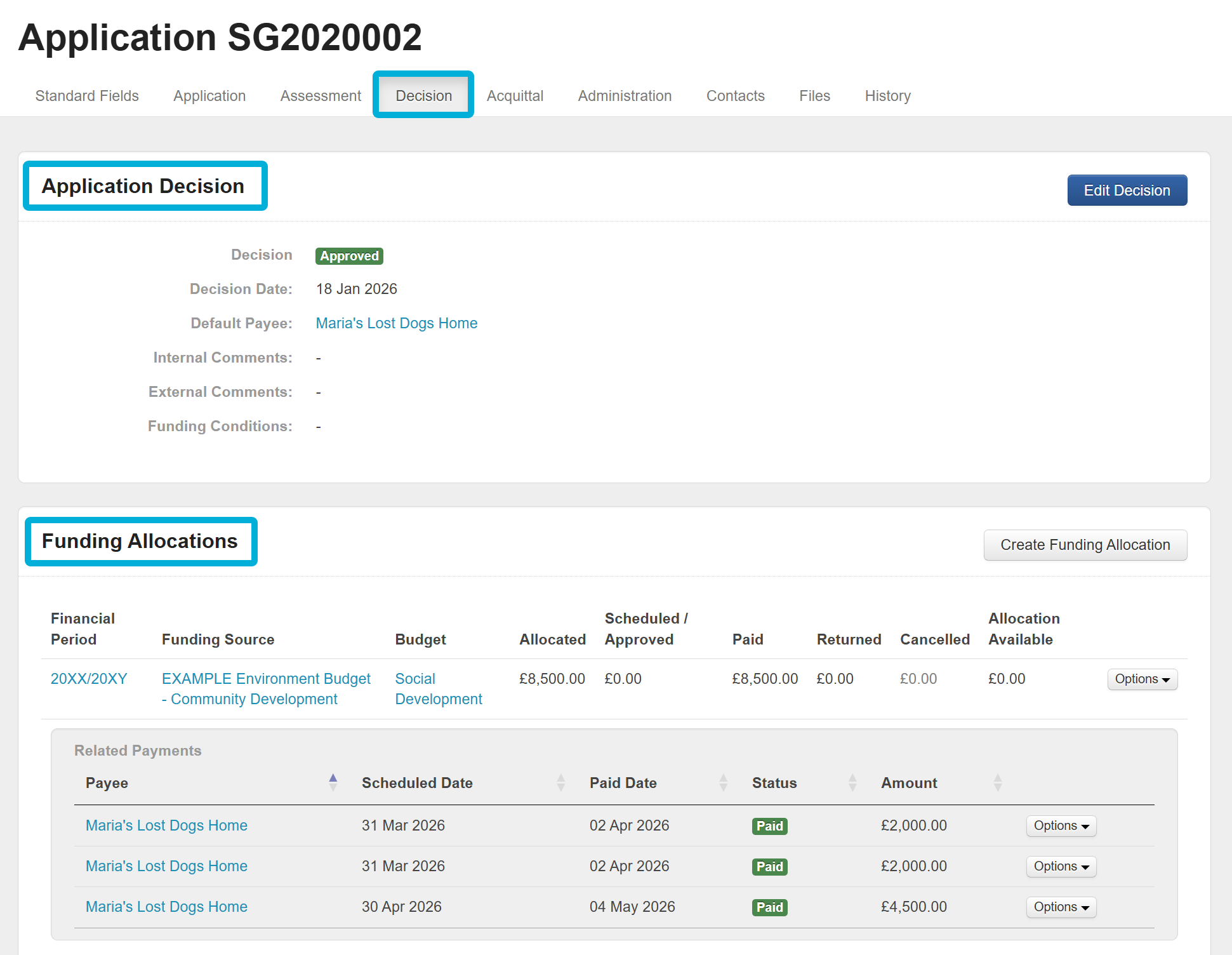 |
File attachments from a form or file note | Both | 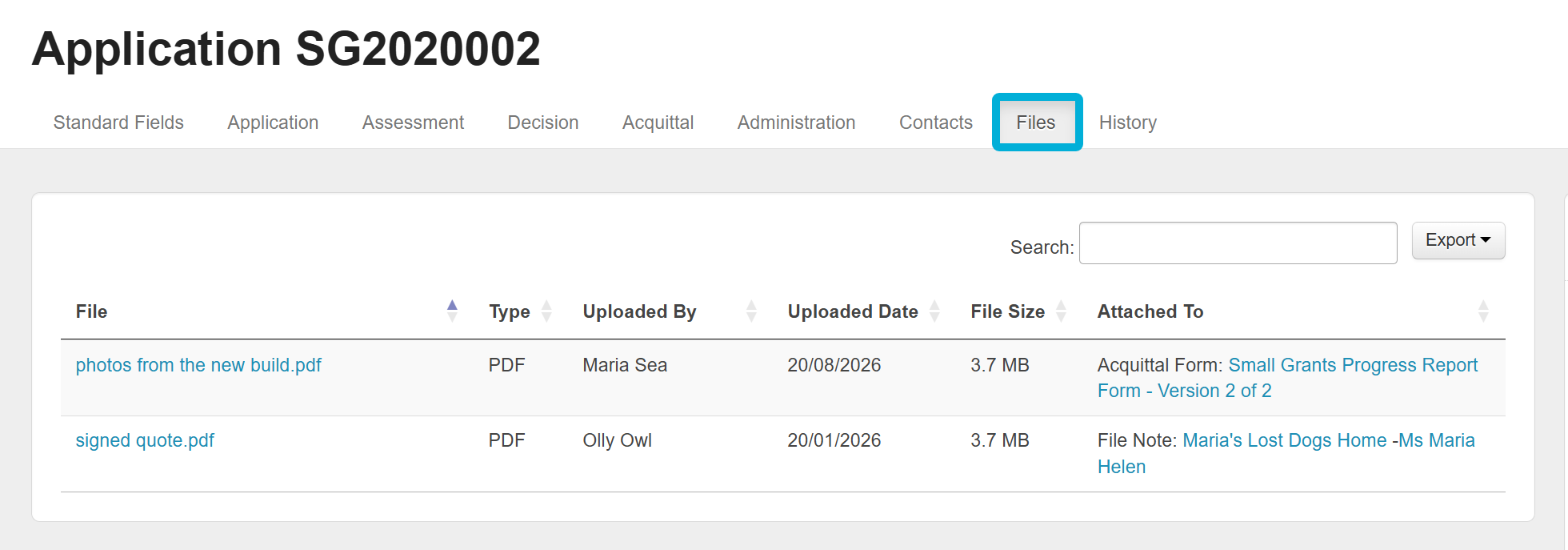 |
Workflow information (Stages and Tasks) | Internal staff | 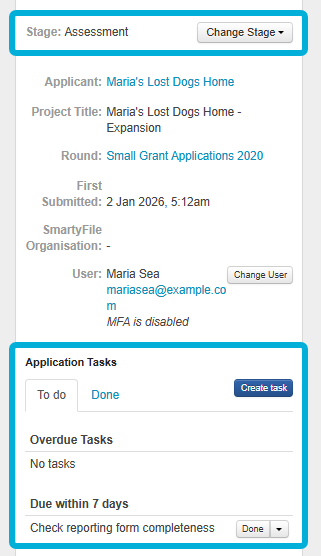 |
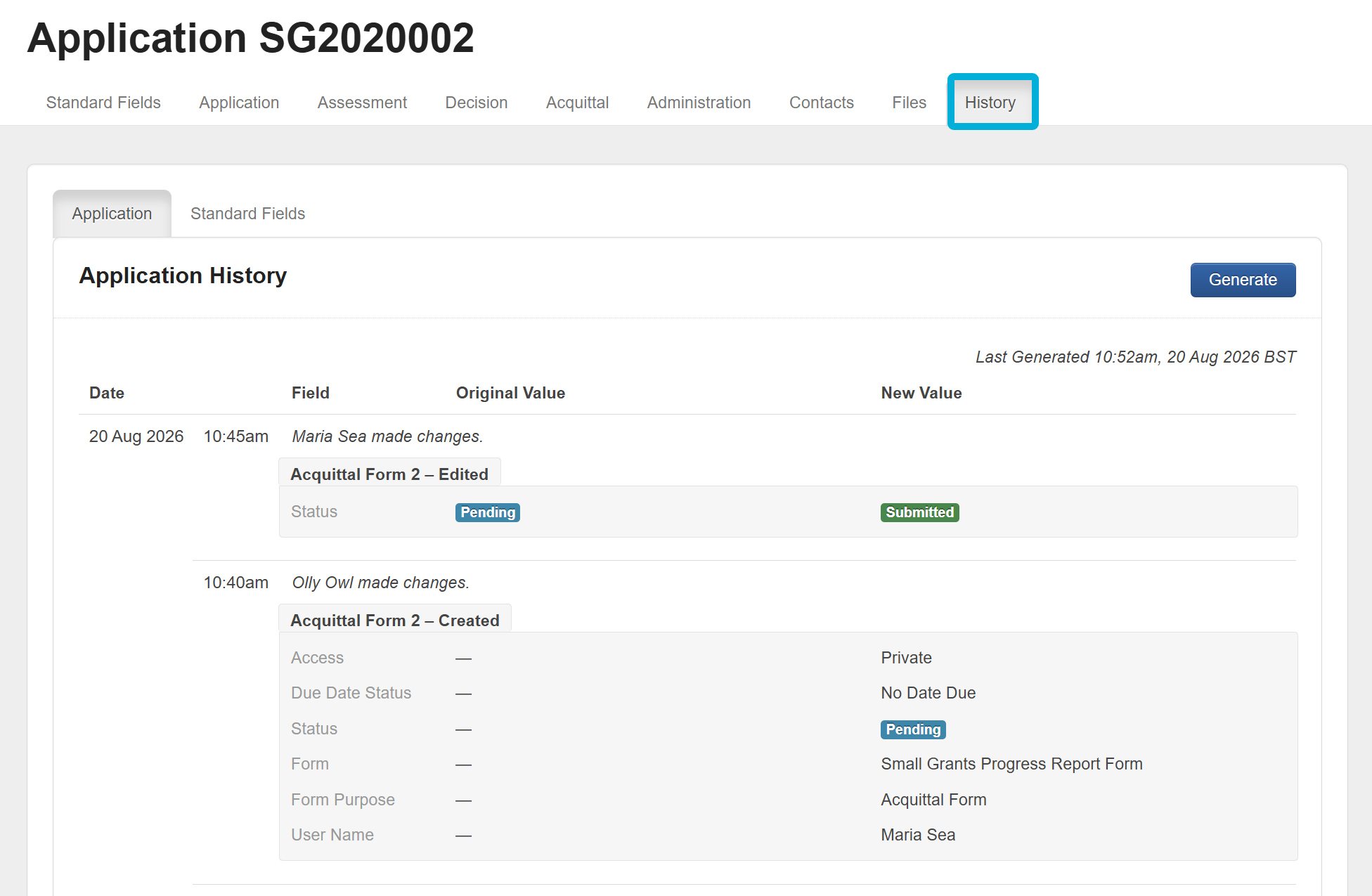
The application record also contains the record’s audit history, which logs changes to the application over time.
Application sidebar
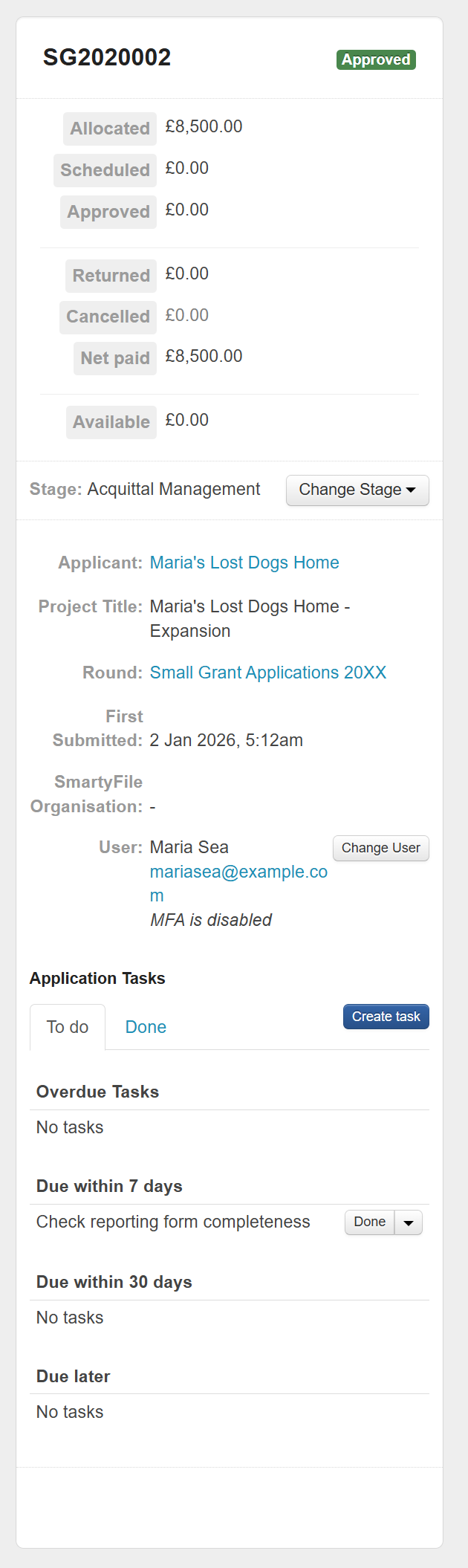
The application sidebar contains a summary of the basic details of the application.
This includes:
the Applicant name
the current Decision status of the application
any Funding details
the current Stage, and
a list of any Tasks attached to the application
Where to next?
Head to Forms and Data.