Overview - Reports and Correspondence
Table of contents
Contacts
SmartyGrants helps you keep track of application contact details by filing them in a dedicated Contact Directory. Some examples of contacts you might want to keep records for are applicants, project contacts, referees, partner organisations, and so on.
Contacts are automatically created in your Contact Directory when an application form using contact fields is submitted. You can also create contacts manually from the directory if you wish.
More than just an address book, the contact directory can provide an at-a-glance summary of an individual or organisation's grant involvement history. It also automatically stores history for any outbound emails you send via SmartyGrants (mailouts, or individual emails). Additionally, you can keep file notes for phone calls, inbound emails, and other correspondence with any of your contacts.
During implementation, your Implementation Manager will want to know what types of relationships a contact might have in relation to your program(s), and what types of contact details you’ll want to collect from them. This will influence how they will set up your data schema and the design of your application forms.
Navigation
To navigate to Contacts, select the Contacts (person) icon from the top navigation bar.

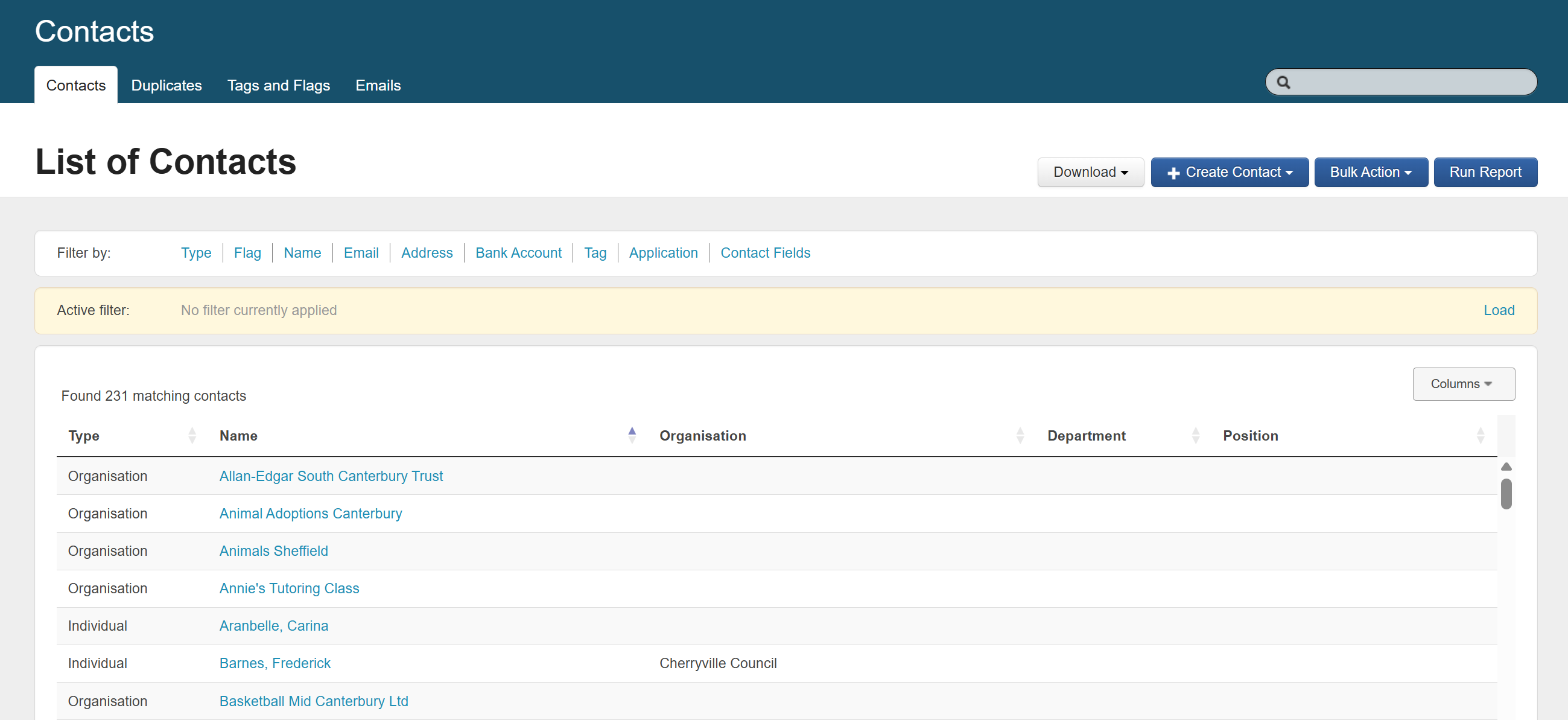
Note: By default, the Contacts view is only accessible to Administrators. This is because it stores contact records from across the account – regardless of which program(s), round(s) or application(s) the contacts relate to.
Unless a specific individual with Program Manager access level is manually granted access to Contacts by an Administrator, no other user type can access this account-wide view.
Mailouts & Emails
In SmartyGrants, you can send outbound emails to contacts that are associated with applications.
You can send an email either:
Individually, by creating and sending an email to contact(s) from either the Application record or Contact record, or
In bulk, by creating and sending a Mailout from the Mailouts tab.
In emails, you can utilise:
Insert fields, which are similar to mail merge functionality. These can automatically personalise an email using application details.
Reports, which can be designed to look like letters or agreements. These can be automatically generated with data personalised to a contact and/or application, and can be automatically attached.
With mailouts (bulk emails) specifically, you can also set up Mailout Templates to help automate correspondence that is standard within your grant process, like successful or unsuccessful funding notifications.
During implementation, your Implementation Manager will need to know the types of regular and standard correspondence that you send to applicants throughout the grant lifecycle, and what information is included in this correspondence. This way, they can set up your data schema and forms to ensure this information is always captured.
Navigation
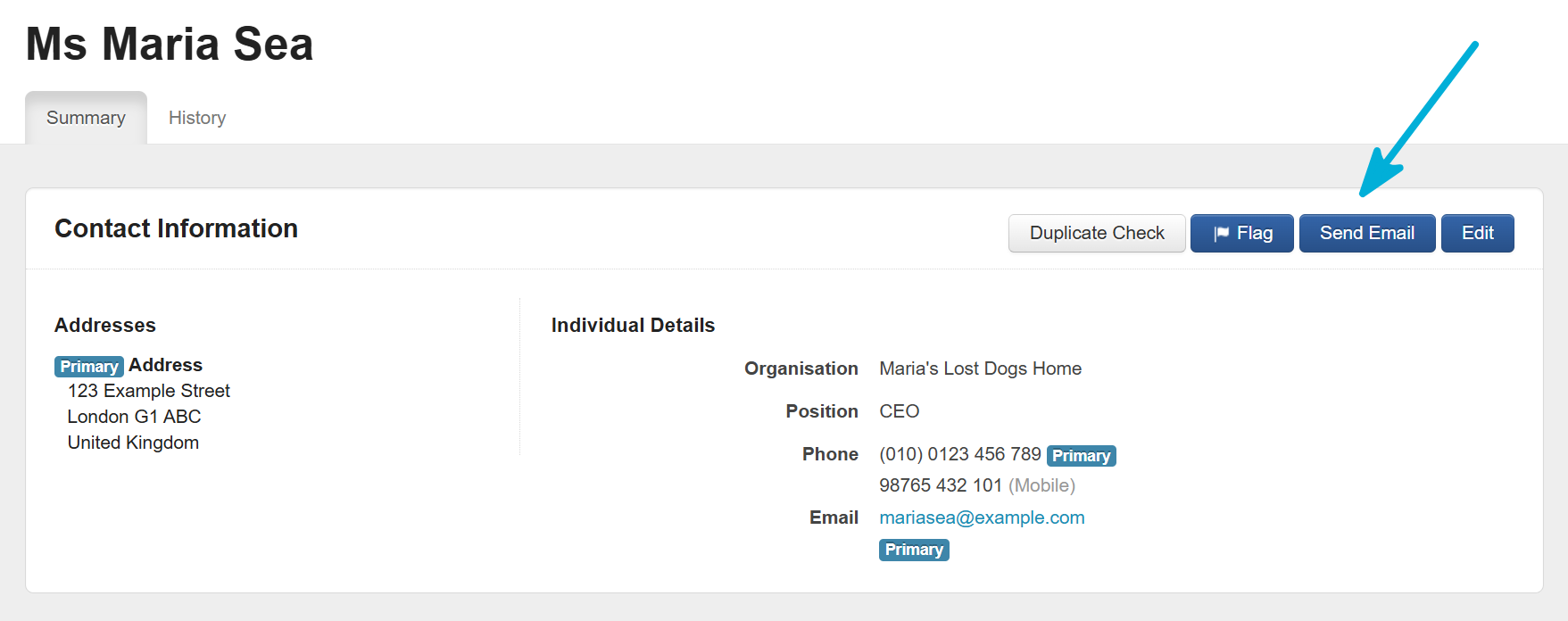
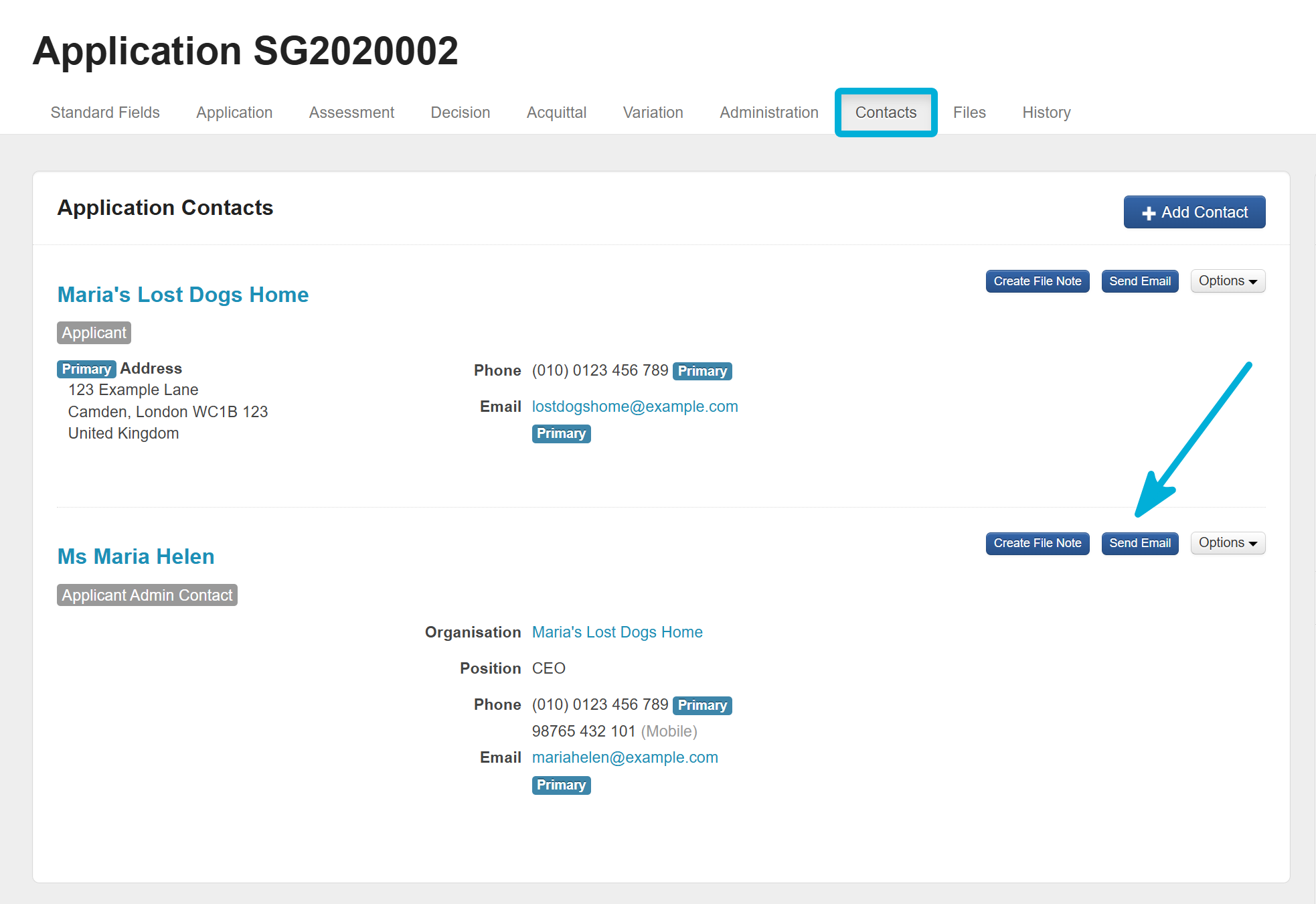
The Send Email (individual) option can be found in two places:
The Contact record –
The Application record –
To navigate to Mailouts (bulk emails), you do so from the Mailouts icon on the top navigation bar:

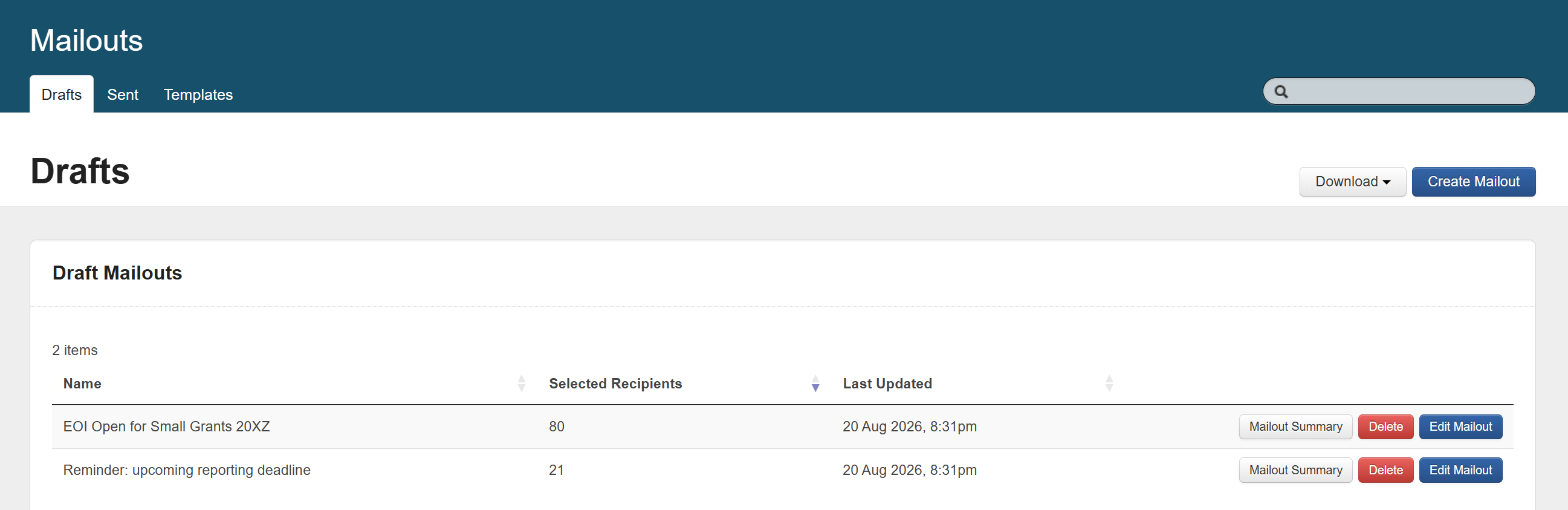
Note: By default, the Mailouts tab is only accessible to Administrators. This is because it allows you to send emails to contacts regardless of which program(s), round(s) or application(s) the contacts relate to.
Unless a specific individual with Program Manager access level is manually granted access to Mailouts by an Administrator, no other user type can access this account-wide view.
Reporting
In SmartyGrants, reports allow you to transform your grants data into meaningful and practical information, formatted however you wish.
Reports can be used to glean insights into the needs of your community, to publicise the good work your grants are helping to achieve, to create letters and agreements, to fulfil auditor requirements, and so much more.
Most importantly, all data recorded in system can be extracted via a report.
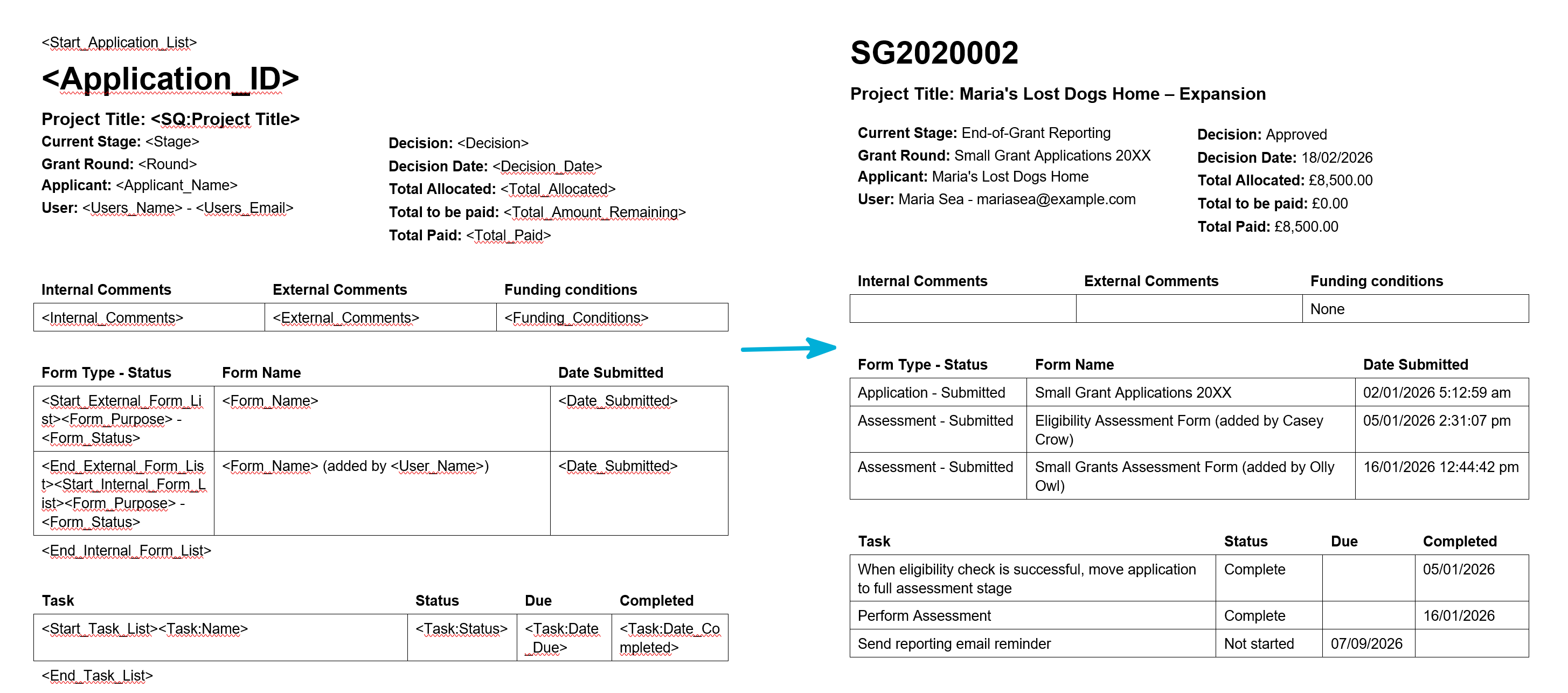
Tip: With the Reporting Engine, reports don’t have to look like reports. They can be designed to mimic the look and feel of many types of documents.
For example, you might make a report template called Funding Agreement that produces a Word file stylised as an agreement for the applicant to fill out.
As another example, you might make a report template called Panel Review that produces a PDF file listing basic application data and answers to key application form questions.
There are three types of reporting:
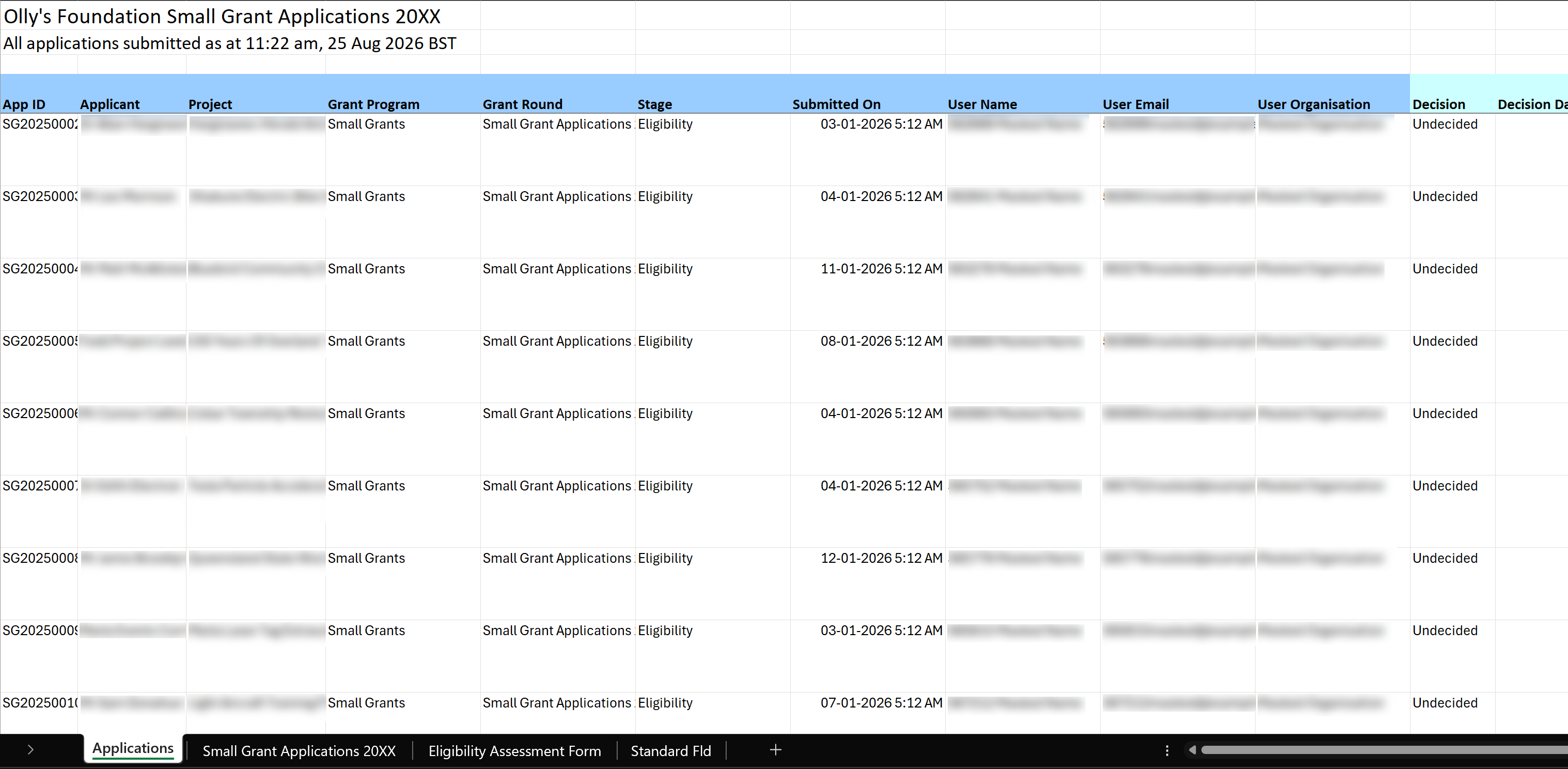
The Reports engine. You can create and run default and custom Word or Excel reports (see previous example).
Snapshot Reports. You can click a button to mass-export data relating to:
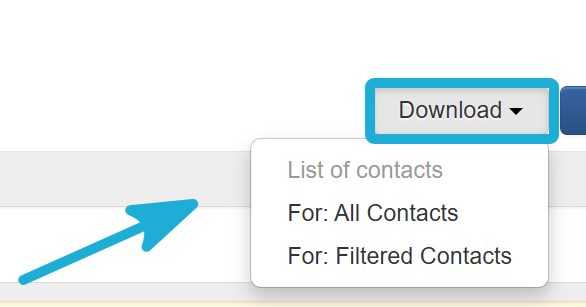
All Contacts,
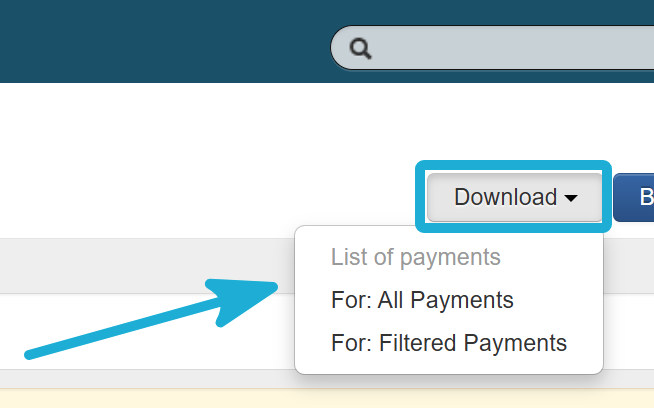
All Payments, and
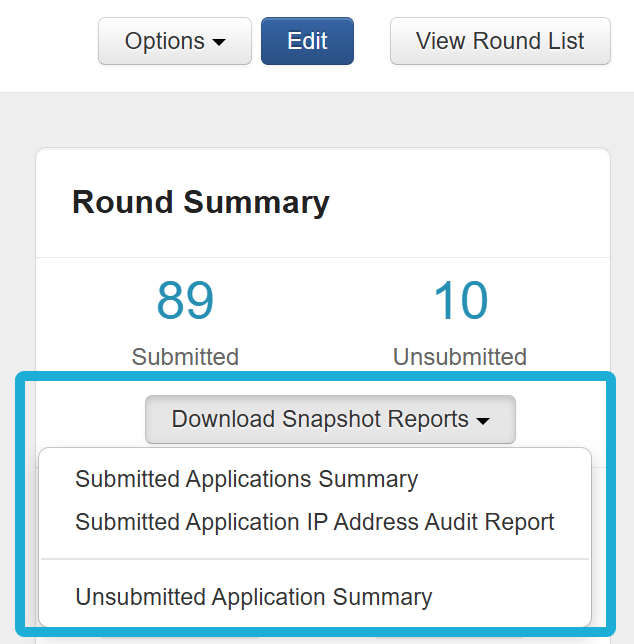
All applications within a specific Round.
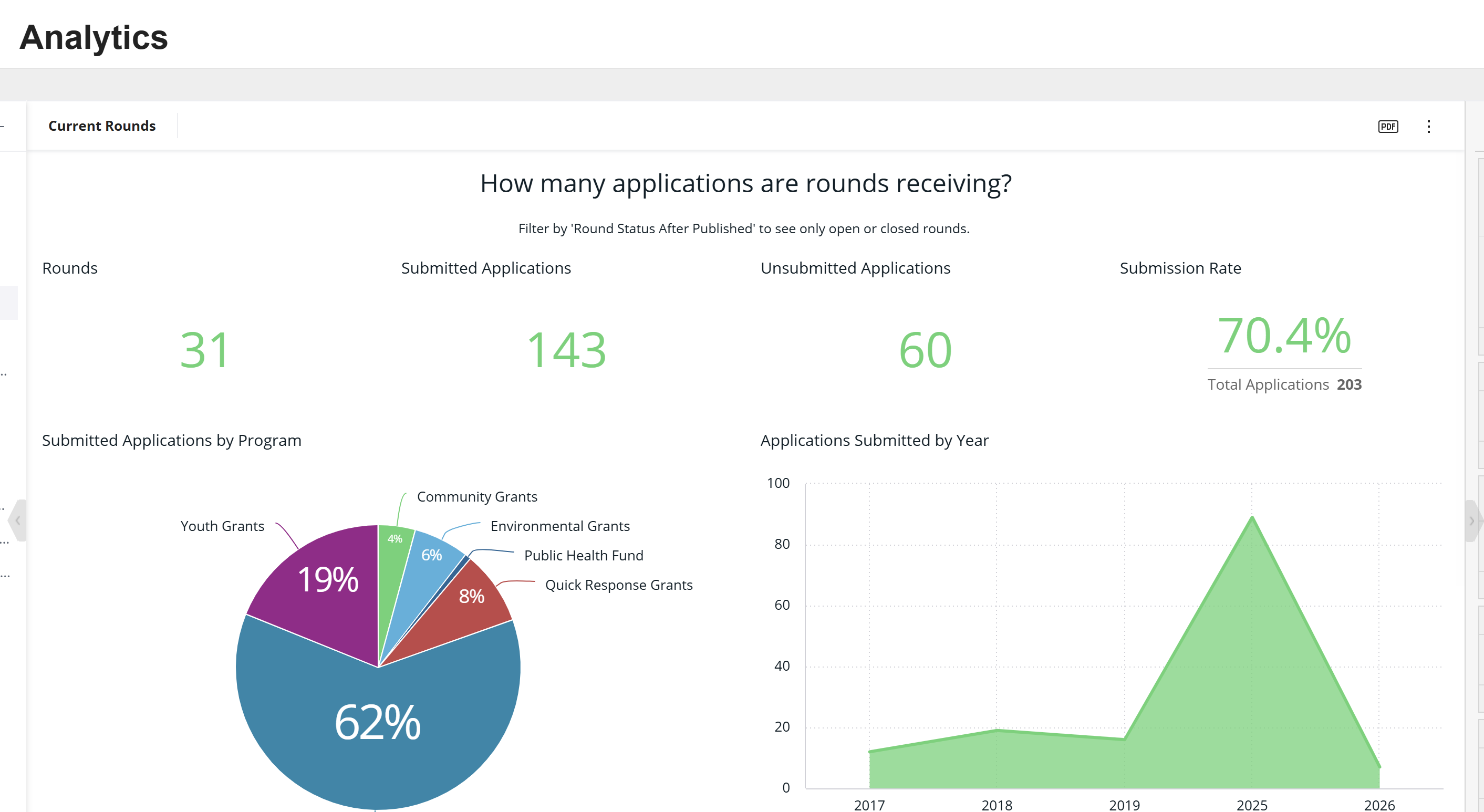
Analytics (paid add-on). You can view data visualisations in near-real-time using dashboards.
During implementation, your Implementation Manager will ask about your reporting needs. This will help them to translate those needs into SmartyGrants reports, and set up your data schema and the design of your forms to ensure the correct information is always captured – and therefore always reportable.
You don’t need to learn how to design and make a report just yet. However, you will need to learn how to run reports, as you will use them throughout your grant lifecycle.
The Implementation Training Pathway recommends that training on how to ‘run a report’ should be done just before you publish your first grant round.
Navigation
There are several different ways you can access reporting.
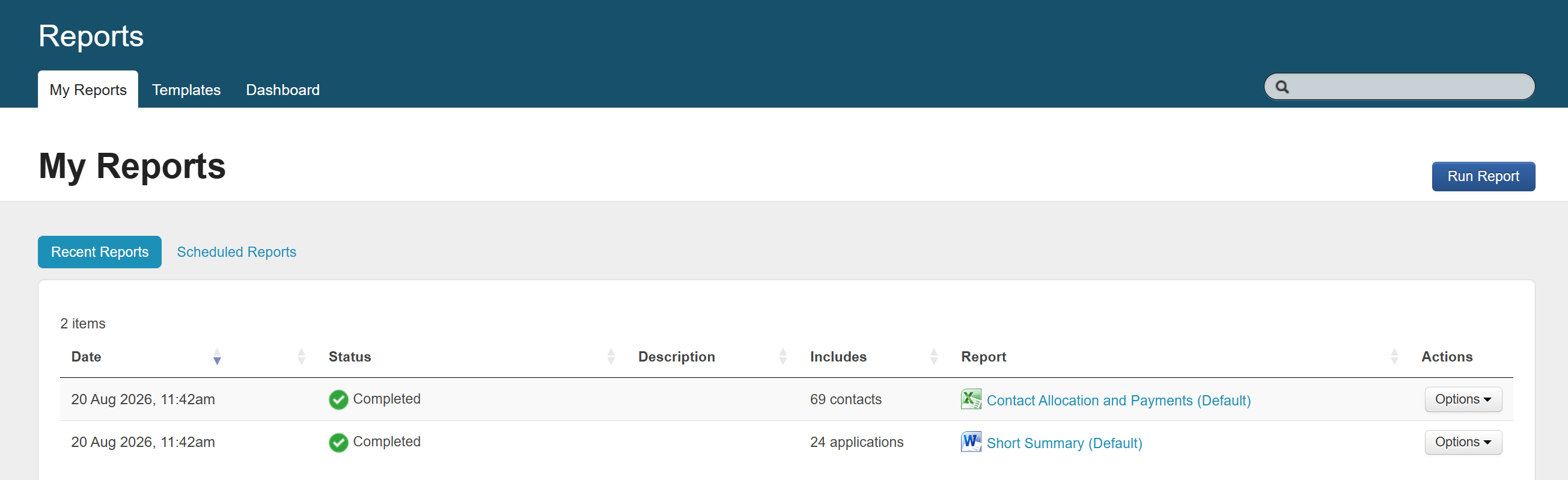
Default or custom reports can be accessed from:
The Reports icon → My Reports tab

The Applications view
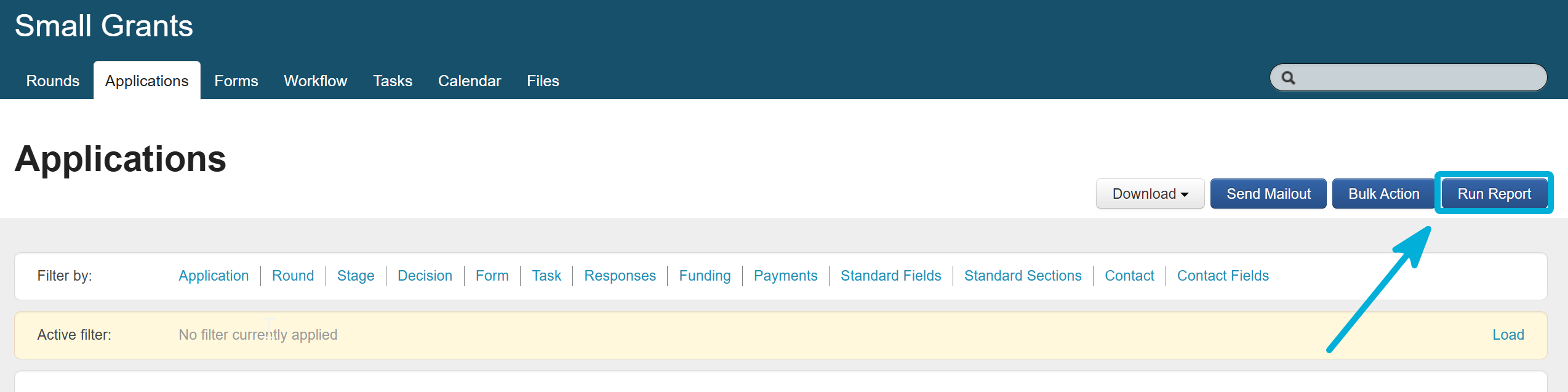
Individual Application records

Contacts directory view

Snapshot Reports are found in different areas than default or custom reports.
Snapshot Reports can be accessed from:
The Contacts Directory
The Funding icon, Payments tab

The Round page
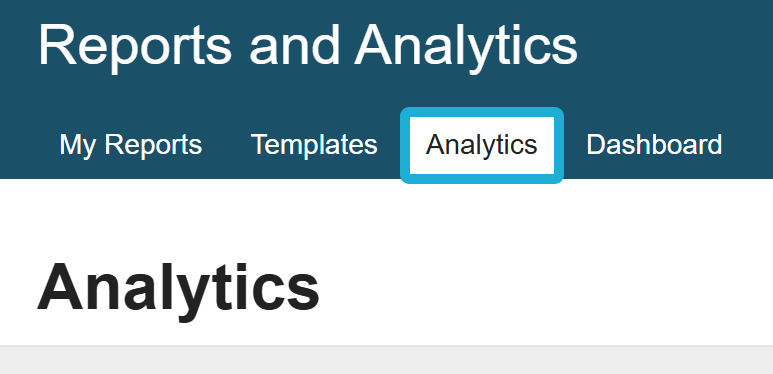
Finally, if your organisation has the Analytics add-on, this can be accessed from:
The Reports icon → Analytics tab

Where to next?
You’ve reached the end of Priority Learning!
Once you feel confident with the topics above, you can log in to SmartyGrants and practise navigating across the system.
When it’s time to test the forms that your Implementation Manager has built, head to Testing.